Static routing
On the Routing page, you can add custom static routes, for example, to the local resources of the provider or other IP networks and nodes, as well as see the current IPv4/IPv6 routes. A static route defines a rule for sending IP packets through a specified gateway or network interface.
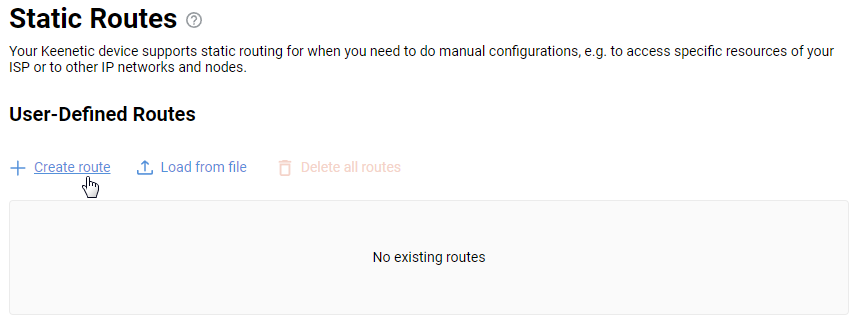
Click on Create route to add a custom route.
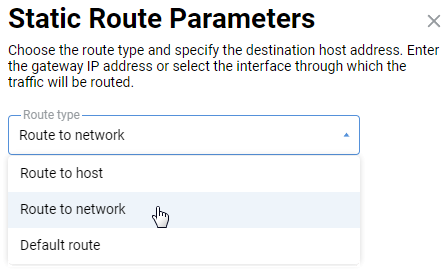
In the Static Route Parameters section, select the type of route and specify the destination address. Enter the gateway address or select the interface through which the corresponding traffic will be routed. Several options are available in the Route type field: Route to host, Route to network and Default route. Select the required option depending on your task. In the Destination network address field, enter the IP address of the network or destination node. Then enter the gateway address or select the interface through which the traffic will be transmitted.
Tick the Add automatically option to apply the route when the specified gateway is available.
For example, let's add a route to the remote network segment accessible via the Backup connection.
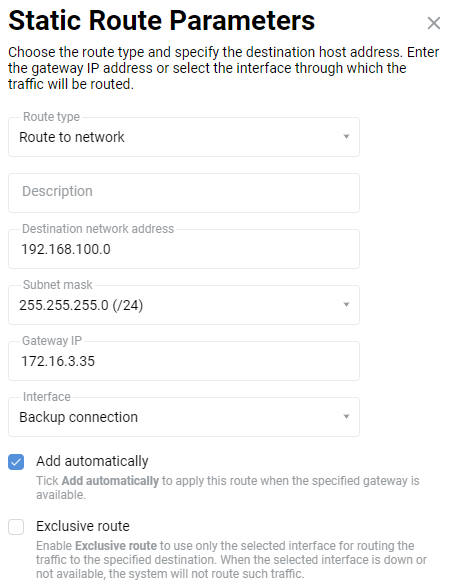
In the Interface field, there will be connections, interfaces and segments available on the device, as well as the value Any.
In addition to adding static routes manually, you can upload a list of routes from a batch file created in advance. This feature is handy when you add a lot of routes.
The file with the .bat extension should use the classic Windows syntax. Example of a command from a batch file:
route ADD 157.0.0.0 MASK 255.0.0.0 157.55.80.1For example, let's make a batch file with a list of routes.
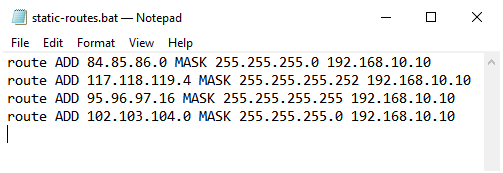
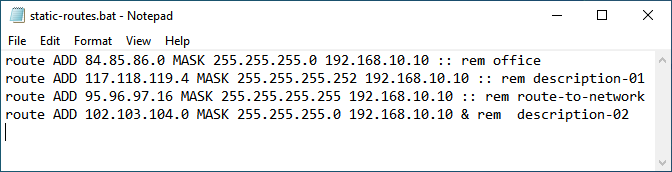
From NDMS version 5.0 onwards, it became possible to add comments or notes to a batch file. The line must end with the parameter :: rem or & rem. Example of a batch file command with a comment:
route ADD 157.0.0.0 MASK 255.0.0.0 157.55.80.1 :: rem descriptionRoute examples:
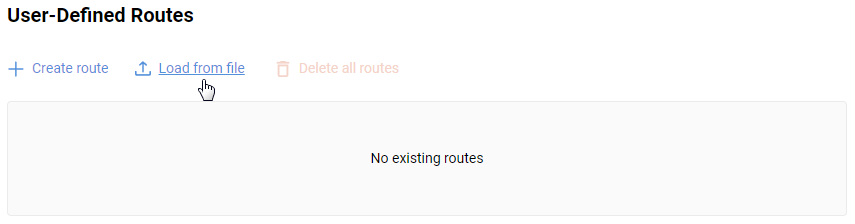
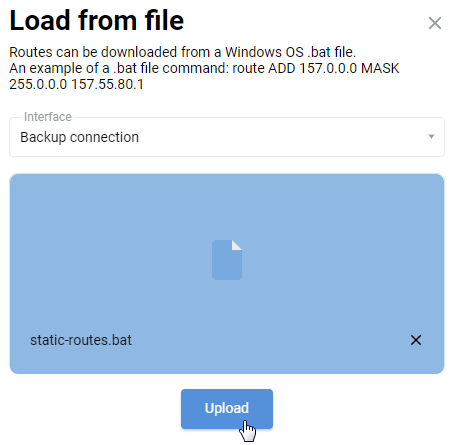
To load routes from a file, click Upload.
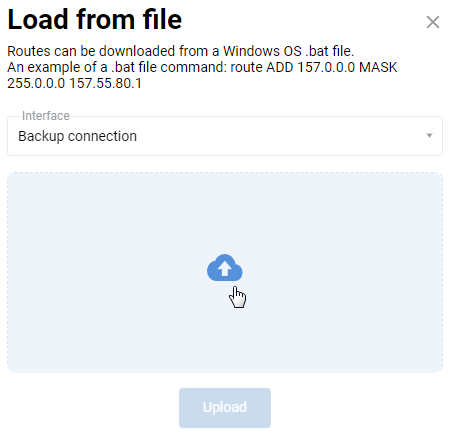
In the Interface field of the Load from file window, you should select the interface for which the routes will be applied (ISP usually provides a list of routes for the local network, i.e. it should be the interface through which the Netcraze router connects to the Internet). Then click the Select file button and specify the path to the batch file on your computer. Then click Upload.
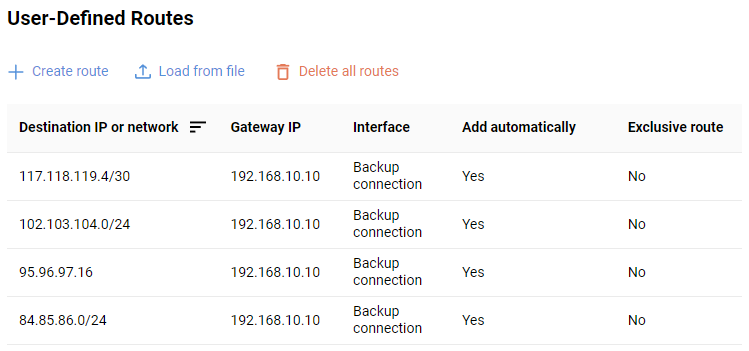
As a result, all static routes from the batch file will be added to the Netcraze routing table.
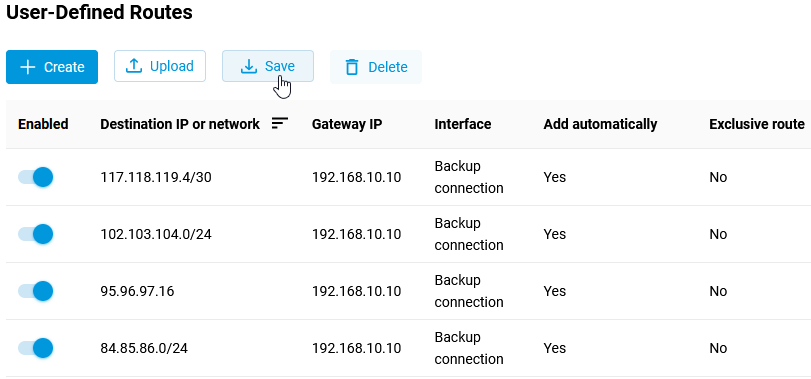
If you need to save the routes to a .bat file, click the Save button. This feature was introduced in NDMS 5.0.
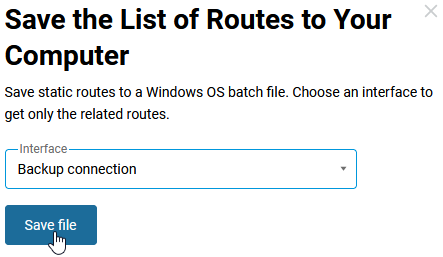
In the Save the List of Routes to Your Computer window, select the interface in the Interface field to save the corresponding routes. Then click the Save file button and specify the folder where the bat file will be saved.
Note
Starting with NDMS 3.8, you can see the current status indicator next to some active routes. This indication appears only for ‘exclusive routes’. The indicators allow you to monitor and diagnose the operation of certain static routes. A Green indicator means that the route is operational, and a Red indicator shows that data to the destination address cannot be transmitted. Exclusive route - In exclusive mode, the system can only use a selected interface to route traffic to a specified destination. If the selected interface is inactive or unavailable, such traffic will not be routed.
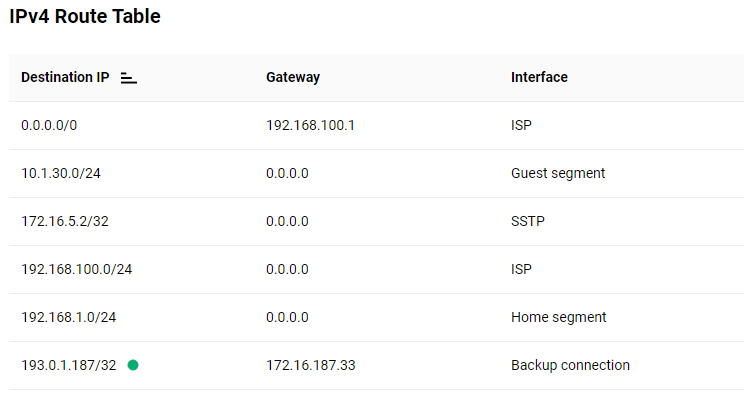
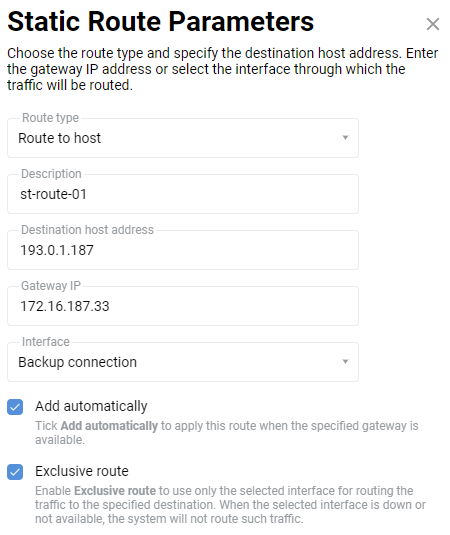
The Exclusive route option can be enabled when adding a static route (the Add automatically option must be enabled beforehand):