Setting up notifications in the app
With the Netcraze mobile application, you can set up notifications to receive information about events on the router in the way that suits you best. For example, you can receive notifications about changes in the status of your router (online/offline) or when it switches to a backup connection.
The following alerts are currently available:
Connecting/disconnecting network devices
A new device on the network
The Netcraze device is offline
The offline alert comes when no signals are received from the router to the cloud server. For example, it may be because the Internet is unavailable (no connection to the Netcraze Cloud server), the server waits for
10 minutesand then generates a notification.The Netcraze device is online
The online alert is received when a signal message from the router appears on the server after the Netcraze Offline event has been triggered. It is generated by the server as soon as the first signal message is received.
The device has been booted up
The router has been turned on/rebooted.
The Internet connection has switched
The alert comes when the WAN connection on the router is changed. For example, switching from the main to the backup channel and vice versa.
NDMS has been updated
The notification comes when the NDMS version on the router is changed.
Wi-Fi off/on
The status of the family profile has changed
Activating/deactivating the Internet for a family profile.
System notifications:
Notifications about incoming SMS for models with a built-in 4G modem (for routers with NDMS version
3.7and higher)
Security notifications (cannot be disabled):
Incorrect Netcraze device password entered to access from the Cloud
A manager has been added to the location
A manager has been removed from the location
Change of encryption key on Netcraze device
A new user has been added to a Netcraze device
You can receive notifications in the following ways:
To an e-mail address
By push notifications (from the Netcraze application on a mobile device)
In the Telegram messenger
In the MAX messenger
Install the Netcraze mobile app:
 |
 |
 |
Add your device to the mobile app by following the instructions:
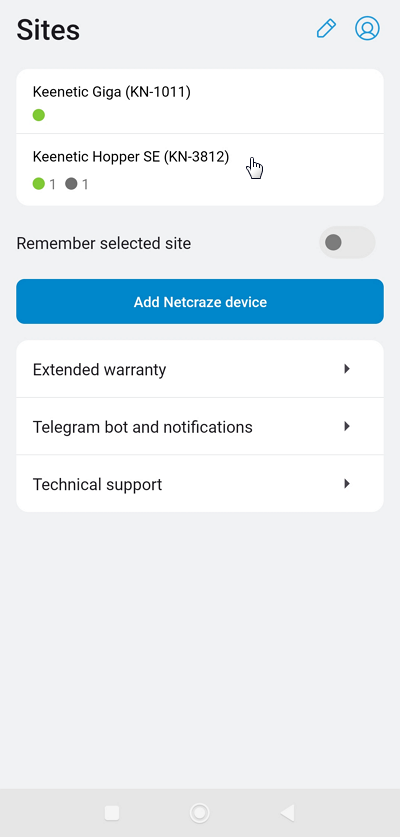
Launch the app, and on the Sites main screen, select the network.
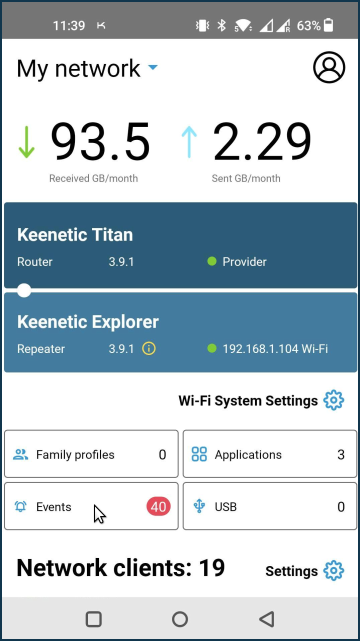
Click on Events > Notification settings.
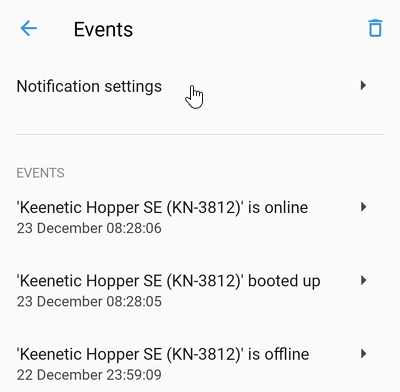
Select the events for which you want to be notified.
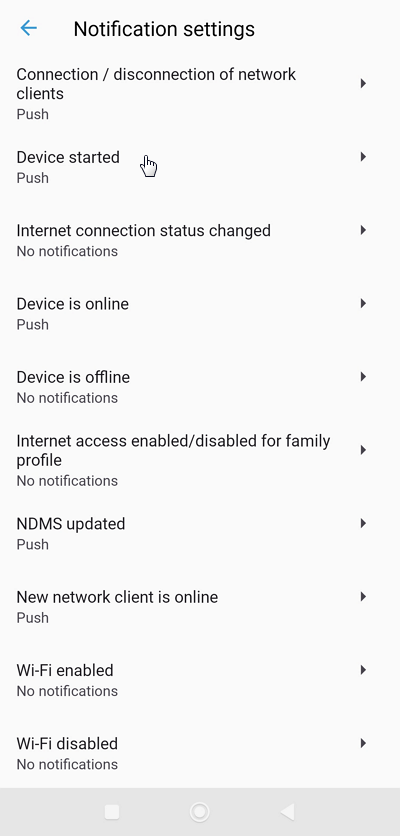
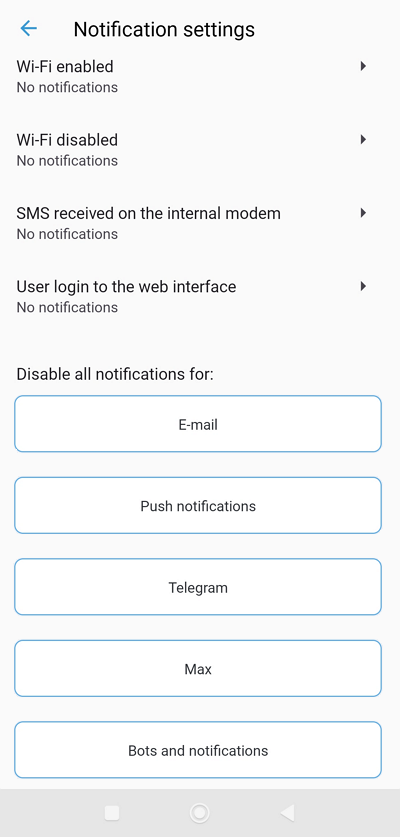
Please tap the events that you want to be notified of when they occur. Select the notification methods. Tap the checkmark in the upper-right corner of the screen to save the setting.
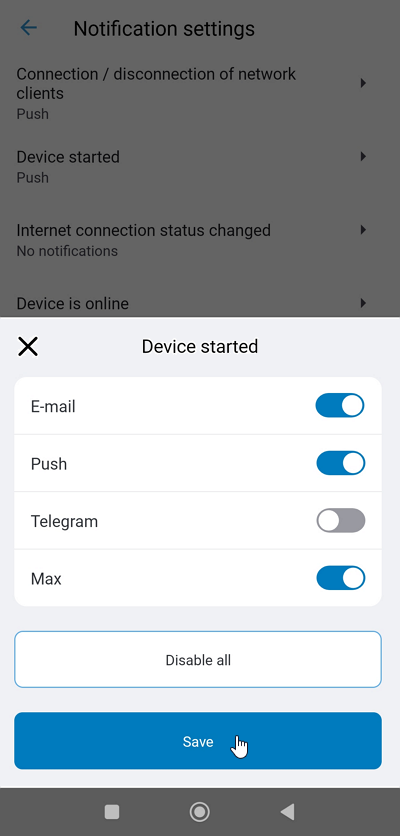
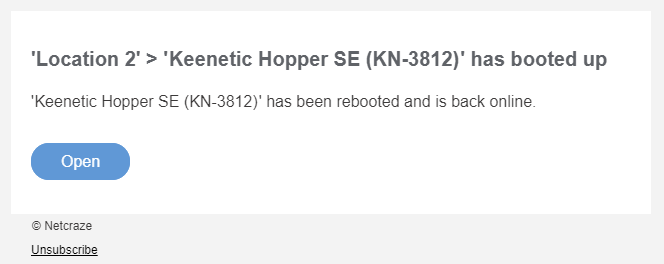
When you enable e-mail notifications, you will receive e-mails to the address you specified when registering your account. For example:
Tip
If you want to set up notifications to different e-mail addresses, you must first create accounts for these addresses on Netcraze Account and then add them as Network Managers.
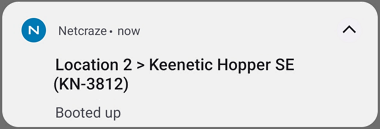
When push notifications are enabled, they will arrive on your mobile device where the Netcraze application is installed. For example:
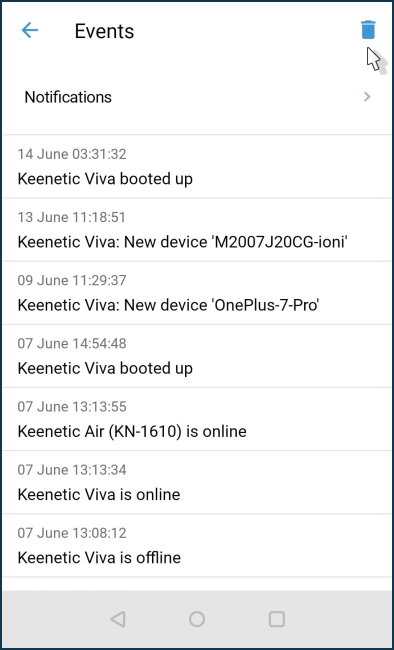
The Events screen keeps a log of completed notifications. To clear the log, press the icon  in the top right corner of the screen.
For further information on receiving notifications in the Telegram messaging app, please refer to the article ???.
To receive notifications in the MAX messaging app, look ???.