Standby (On demand) mode for backup connections
By default, a backup connection for Internet access is always in the connected state. This maximises the speed of switching to a backup connection if the main connection fails.
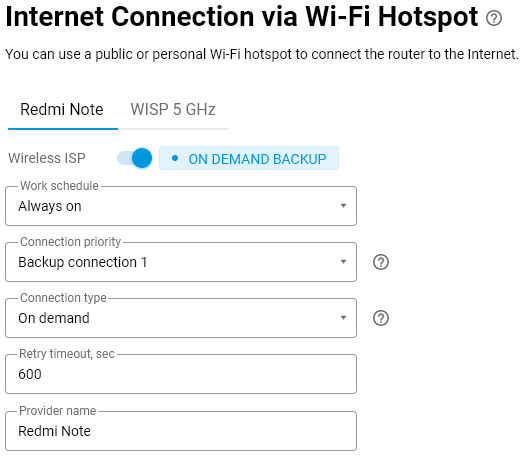
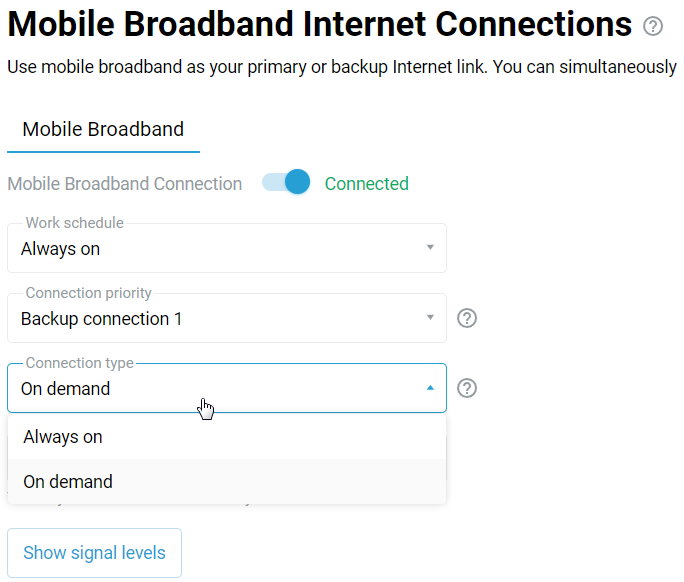
If the user prefers that the router only initiates a backup connection to the operator when the main channel fails, then the backup channel needs to be set to Standby (On demand) mode (available from NDMS 4.0 and higher). In this case, it takes longer to switch to Standby (On demand), but there are advantages in this mode. This mode is available for Internet connections via a 5G/4G/3G modem (via a mobile network) and Wireless ISP (WISP).
Examples of when it is advisable to use this option:
According to certain tariffs, your operator can deduct funds from the user's balance for the fact of connecting to the network at least once a day for a few seconds;
If the standby channel is always active, service traffic is being received and transmitted, and cellular operators can charge the subscriber based on the traffic;
Less power consumption of 4G modems in Standby (On demand) mode;
In WISP mode, disabling continuous scanning of the airwaves for the specified access point will result in the backup connection only working when the primary connection is unavailable.
Standby (On demand) mode can be set for backup modem connections and WISP via the web interface in the Connection type section, and Ethernet cable connections (via CLI only).
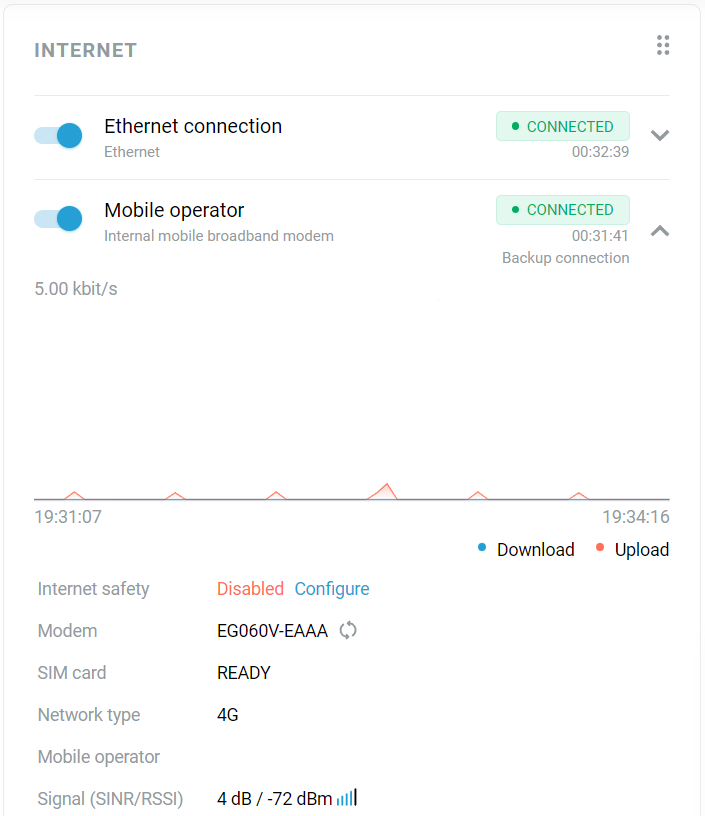
The Standby (On demand) mode is not in use:
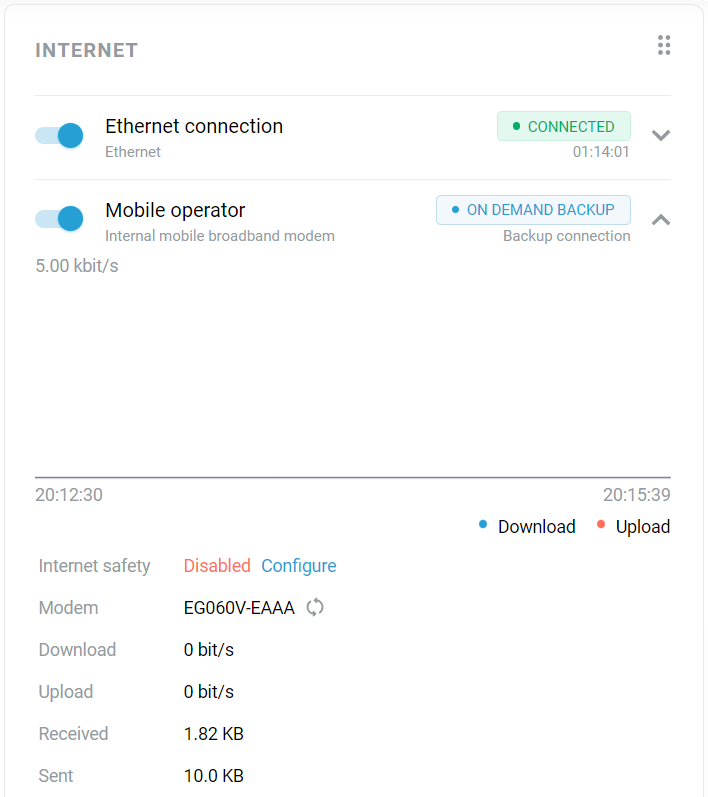
The Standby (On demand) mode is on:
Tip
In the Wireless ISP connection settings, there is a Retry timeout field that sets a timer for connection attempts to the Wi-Fi access point. The default setting is 600 seconds (10 minutes). Connection attempts will be made on demand, but if a connection cannot be established within the specified time, the system reverts to standby mode until the next change to the internet access configuration.