Telephony
Phone Station
The 'Phone Station' page shows general settings for the telephone exchange, FXS port settings for the Netcraze Linear adapter (if it is plugged into the router), and also the call history and parallel call settings.
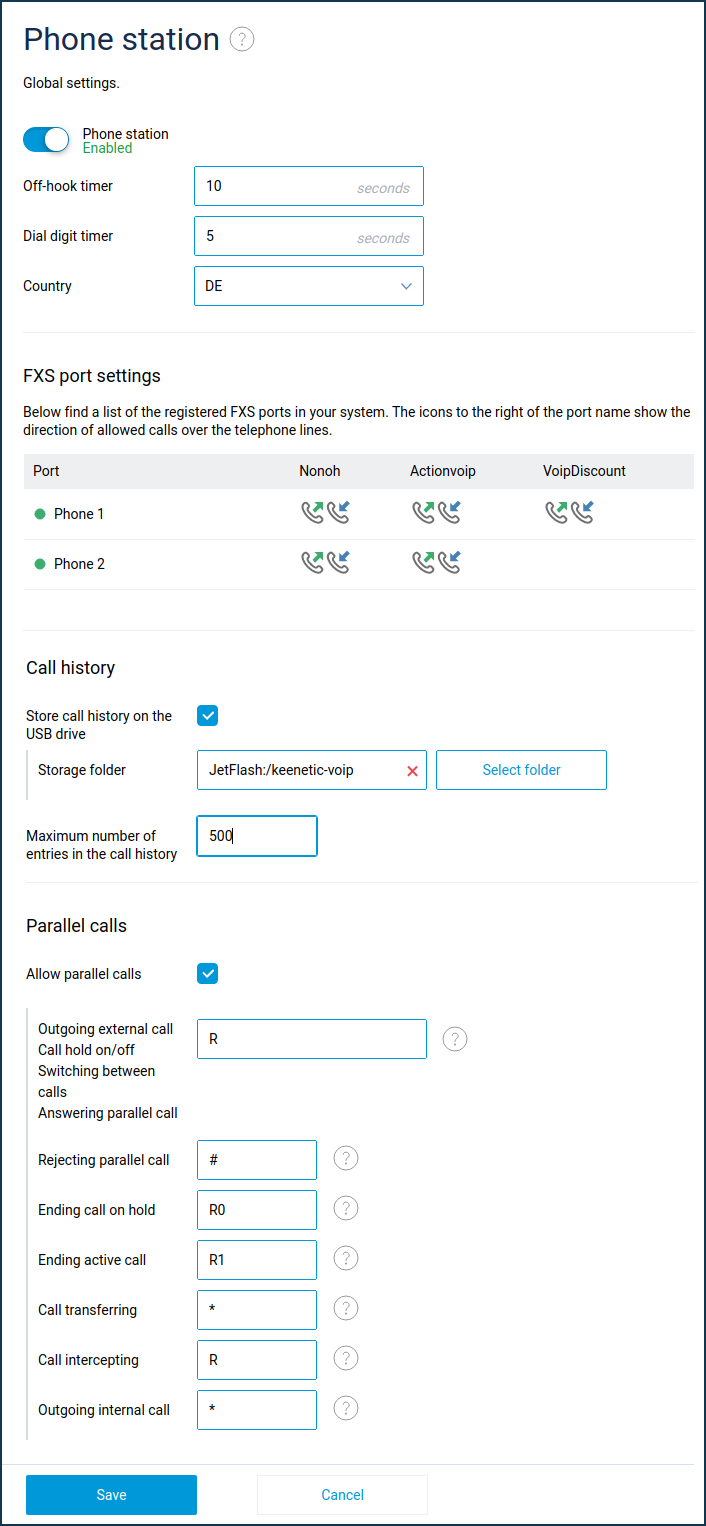
Phone Station switch — activates/deactivates the station. If the Phone Station is switched off, the telephones are turned off, telephone line registration is deactivated, and internal/external calls are not possible.
Off-hook timer — the time from the moment the off-hook state is activated on the telephone, during which it waits for the first digit of the number to be entered. If no digits have been dialled during this time, the handset rings shortly.
Dial digit timer — the waiting time for entering the second and each subsequent digit of a number in the off-hook state. The phone waits for the entry to continue until the dialled digit sequence partially matches at least one of the dial rules configured on the phone lines allowed for outgoing calls for this telephone. If a full match is met, the wait is ended, and an outgoing call is made to the dialled number. If no dial rules are configured, the Phone Station waits to continue dialling after each digit is dialled and makes a call to the dialled number after the set time has passed.
Country — select your country from the list to apply the Netcraze Linear adapter national settings profile. The FXS port impedance, tone and ring tone settings will be configured according to the standards of that country.
FXS port settings — a table that displays the phone ports of the Netcraze Linear adapter. Each row in the table corresponds to one of the ports.
The indicator in the leftmost column shows the current state of the port:
green — the port is on and ready to work;
grey — the port is off.
Icons with green and blue arrows to the right of the port name show that the phone connected to this port is allowed to call through this telephone line. The name of the line is listed in the header of the table column. The blue arrow indicates incoming calls, and the green arrow indicates outgoing calls. No icon means that calls through this line are forbidden.
A single click on a line in the table of telephone ports opens the corresponding port settings window. All available port settings can be found on the 'FXS port' page.
Call history section
Store call history on the USB flash drive — by default, the call history (list of outgoing, incoming and missed calls) is stored in the device's non-volatile RAM. The call history is reset after each device reboot caused by a power outage, by user command, or after a NDMS upgrade. If you want to keep the call log after the device reboots, you need to store it on external storage connected to the USB port of the device. To do this, plug in a USB drive, then select the directory on that drive where the call log file will be stored.
Maximum number of entries in the call history — set the maximum number of entries in the call history, if necessary.
Parallel calls section
Netcraze Phone Station supports two simultaneous (parallel) telephone connections on each phone.
Parallel calls are controlled by special codes that are dialled on the phone keypad. Each of these codes is a sequence from 1 to 3 characters. The first character can be *, # or R. The next two can be characters *, #, R or digits from 0 to 9.
You can change the preset codes by typing new codes in the corresponding fields. The operation of the parallel call control functions is described in detail below.
Allow parallel calls — if you want to manage concurrent calls on the IP telephony operator's server, you can disable parallel call support on the Netcraze Phone Station. By default, parallel call support is enabled.
Switching between calls — when subscriber A is on hold while you are on a call with subscriber B, dial this code (default is [R]) to put B on hold and return to the call with A.
Call hold on/off — while you are on a call with subscriber A, dial this code (default is [R]) to put A on hold. To unhold A, dial this code again.
Answering parallel call — when you receive a call from caller A while you are on a call with caller B, a special tone sounds in the handset. Dial this code (default is [R]) to put B on hold and answer A's call.
Rejecting parallel call — when an incoming call from subscriber A comes in while you are on a call with subscriber B, dial this code (by default [#]) to reject A and continue the call with B.
Ending call on hold — when you have subscriber A on hold with subscriber B, dial this code (by default [R] [0]) to end the call with A and continue the current call with B.
Ending active call — when A is on hold while you are on a call with B, dial this code (by default [R] [1]) to end the current call with B and continue the call with A.
Call transferring — When A is on hold on an outgoing call to B, dial this code (by default [*]) to connect A to B. A will start a conversation with B when B answers the call.
Or when A is on hold while you are on a call with B, dial this code to connect A to B.
Outgoing external call — while you are on a call with subscriber A, dial this code (default is [R]) to put A on hold and then dial the number of subscriber B to call him.
Outgoing internal call — while you are on a call with subscriber A, dial this code (default is [*]) to put A on hold, then dial the internal phone number to call him.
Call intercepting — when an outside call comes in on the phone connected to the phone port on the Netcraze Linear adapter (hereafter Phone 1), dial this code (default [R]) on the phone connected to the other port on the Netcraze Linear adapter (hereafter Phone 2) so that Phone 2 answers the call instead of Phone 1.
Or, when Phone 1 is talking to an outside caller, dial this code on Phone 2 to transfer the call from Phone 1 to Phone 2.
Note
Call interception is possible if there are no other calls on the Netcraze Phone Station at the time of the interception. Call transfer is possible if there are no other calls on the Phone Station at the time of transfer.
By default, call interception is always allowed. You can prohibit call interception and call transfer from a certain port and/or from certain lines, if necessary. To do this, use the following commands in the CLI.
Prohibit call interception from the selected port:
nvox fxs port {id} pickupableProhibit call interception from the selected line:
nvox sip {id} deny-pickupProhibit call transfer from the given port:
nvox fxs port {id} interceptableProhibit call transfer from the selected line:
nvox sip {id} deny-interceptionSetting up Phone Station with a Linear adapter
You can add a phone station feature to any compatible Netcraze with a USB port by using the Netcraze Linear analog telephone adapter. This adapter is connected to a USB port of the router and is controlled by its operating system. Analog phones connected to the phone ports turn into IP phones that can be connected to cloud PBX operators via SIP protocol to provide your home or business with telephony without extra equipment, wires and regardless of geographical location.
With Netcraze Linear, a Netcraze router allows small and medium-sized businesses to connect remote offices, retail stores and employees working from home to the Internet, give them secure access to corporate network resources and set up cloud-based PBX phone service.
For home users, Netcraze Linear will help you connect a landline number and make calls at the best rates. With up to ten phone lines from multiple providers and flexible call routing rules, every outgoing call can be automatically routed through the lowest-priced line.
To take full advantage of the telephony features, upgrade your NDMS to version 3.7.1 or later and install the 'Netcraze Phone Station' system component. You can do this on the 'General system settings' page under 'NDMS update and component options' by clicking 'Component options'.
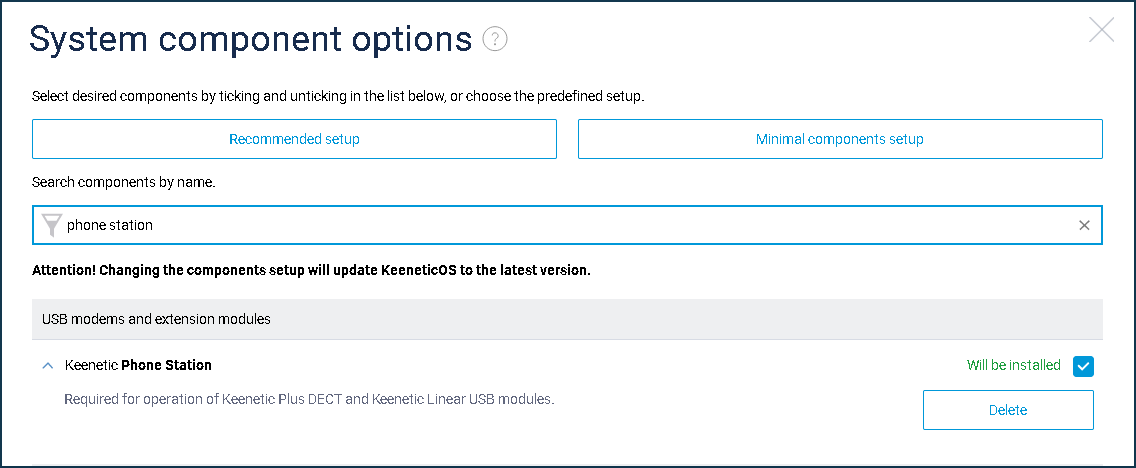
Then connect theNetcraze Linear analog telephone adapter to a USB port of your router and connect one or two phones to its phone ports.
The configuration of your Netcraze telephone exchange is described in the following articles:
Current status monitoring
The current status of the Netcraze telephone exchange is displayed in the section with the same name on the 'System dashboard' page.
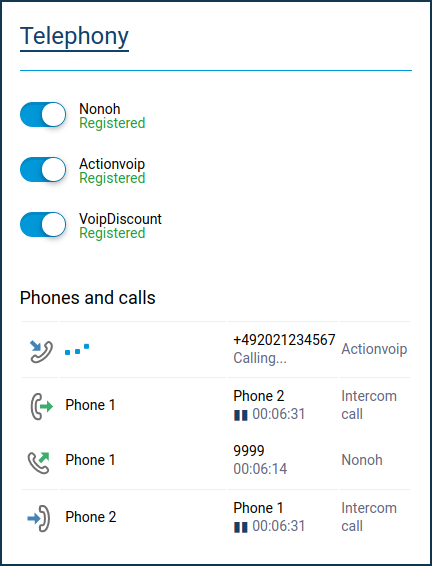
Here you may see the list of all configured phone lines, phones connected to Netcraze Linear, and phone calls that are currently in progress. Each phone line has its current status:
Registered — registration on the IP telephony operator's server is successful. The line is ready for incoming and outgoing calls;
P2P mode — SIP registration is disabled in the line settings. The line is ready for incoming and outgoing calls;
Error (message) — registration error. The message received from the registration server is displayed in brackets;
Disabled — the line is turned off and not used.
When making an outgoing call, the number called and the name of the telephone line through which the call was sent are displayed on the right side of the phone icon. During a call, the duration of the call is displayed.
An incoming call is displayed on a separate line with the caller's number and phone line name until one of the phones answers.
After it is answered, the caller's number, line name, and call duration are displayed to the right of the answering phone's icon.
Special icons indicate the direction of the call:
 — incoming internal call;
 — incoming external call;
 — outgoing internal call;
 — outgoing external call.
If the Netcraze telephone exchange is turned off, the message 'Telephony functions disabled' is displayed. To turn on the Phone Station, click 'Enable'.
Setting up an FXS port
The FXS phone ports of the Netcraze Linear adapter are shown in the table on the 'Phone Station' page. Each row in the table corresponds to one of the ports. Clicking on a line opens the configuration window for the corresponding port.
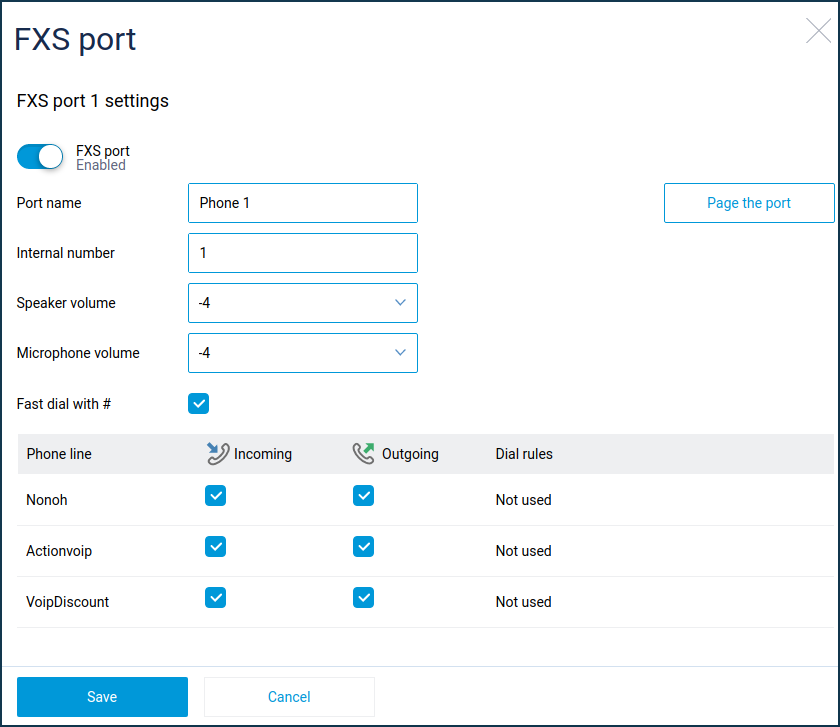
FXS port — enables/disables the port. When the port is turned off, incoming and outgoing calls cannot be made on the phone connected to it. The electrical current drawn by the Netcraze Linear adapter from the router's USB port is significantly reduced. If only one phone is connected to the Netcraze Linear adapter, you may want to turn off the unused phone port.
Port name — enter a port name to help you associate the port with the phone's user connected to that port. The port name appears in the call history entries and in the system message log created by incoming and outgoing calls. During an internal call, the name of the port from which the call came is displayed on the display of the phone connected to the called port (if the phone supports the CID FSK MDMF standard).
Internal number — the number that can be called on this port from another port directly, without connecting to the IP telephony operator.
Speaker volume — sets the volume level of the sound on the phone connected to this port.
Microphone volume — the volume level of the sound transmitted to the other party from the phone connected to this port.
Fast dial with # — this option allows you to immediately send a call to the dialled number without waiting to dial the next digit if you press '#' after finishing dialling the number.
Page the port — press this button to make the phone connected to the port start ringing. To turn off the call, press the button again.
Incoming — enable this option to allow the phone connected to this port to receive incoming calls over the indicated telephone line. If this option is disabled, incoming calls on this line are not allowed.
Outgoing — Enable this option to allow the phone connected to this port to make outgoing calls over the indicated telephone line. If this option is disabled, outgoing calls on this line are not allowed.
Note
The 'Incoming' and 'Outgoing' options do not affect internal calls between phone ports on the adapter. Internal calls are always allowed.
Dial rules — dialling rules configured in telephone line settings. A 'Not used' notification is displayed if no rules are configured.
Telephone lines
On the 'Phone lines' page, you can set up a connection to an IP telephony service provider.
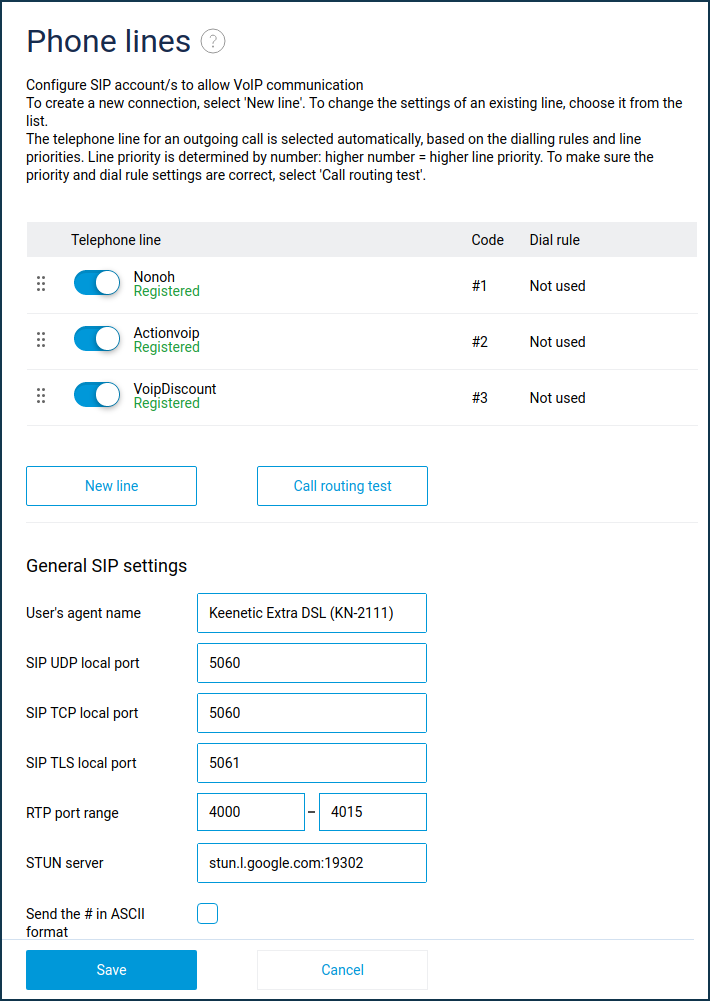
To set up a new connection, press 'New line'. To change the parameters of an existing line, select its entry in the list.
With two or more lines configured, the direction of outgoing calls is automatically selected based on line priorities and dial rules. To change a line's priority, drag its row in the table: the higher the row in the table, the higher the line's priority. Use the call routing test to ensure that the priorities and dial rules are set correctly.
The 'Telephone line' column shows the line names. Under each name, the line status is displayed:
Registered — registration on the IP telephony operator's server is successful. The line is ready for incoming and outgoing calls;
P2P mode — SIP registration is disabled in the line settings. The line is ready for incoming and outgoing calls;
Error (message) — registration error. The message received from the registration server is displayed in brackets;
Disabled — the line is turned off and not used.
The switches to the left of the line names allow you to activate and deactivate lines without going into the line settings. If the line is switched off, no incoming calls can be made through this line.
The 'Code' column shows the line selection code for the outgoing call.
The 'Dial rule' column displays the dial rules that apply to the phone lines. If no rules are configured, 'Not used' is displayed.
Note
The line selection code and dial rules are described in detail in the 'Setting up a telephone line' article.
The position of the rows in the table corresponds to the line priority: the higher the row in the table, the higher the line priority. Priorities are taken into account when selecting a line for an outgoing call. The Phone Station selects the line with the highest priority among those that are allowed for this phone and have dialling rules corresponding to the dialled number. The line priority can be changed by dragging the appropriate row in the table to the desired position. Use the special marker located at the beginning of each line to drag and drop the line.
A single click on a row in the table opens the corresponding telephone line configuration window, all settings in which are described further in the 'Setting up a telephone line' article.
New line — press this button to configure a new SIP telephone line to connect to an IP telephony operator. Up to 10 telephone lines can be configured in total. Clicking the button opens the SIP telephone line configuration window, all settings in which are described further in the 'Setting up a telephone line' article.
General SIP settings section
User Agent name — is the name specified in the SIP requests sent to the IP telephony operator for registration and incoming/outgoing calls. The operator uses it to identify the subscriber's equipment. The default value is the model name of the router.
SIP UDP local port — is the UDP port of the Netcraze device used to exchange SIP signalling messages with IP telephony providers' servers over the UDP transport protocol.
SIP TCP local port — is the TCP port of Netcraze device used to exchange SIP signalling messages with IP telephony providers' servers using the TCP transport protocol.
SIP TLS local port — is the TCP port of Netcraze device used to exchange SIP signalling messages with IP telephony providers' servers using the TLS secure transport protocol.
RTP port range — is the range of UDP ports of Netcraze device used for receiving and transmitting RTP/SRTP voice data streams during telephone connections.
STUN server — IP address or domain name of the STUN server. The non-standard server port must be specified with a colon to the right. STUN technology may be required to establish UDP connections to IP telephony carriers' servers if the Netcraze device is behind NAT.
Send # in ASCII format — if this option is enabled, then during outgoing calls, the character '#' is placed in the Request URI of INVITE requests in ASCII encoding, which is necessary for normal work with some IP telephony operators. With this option disabled, the '#' character is encoded as '%23', which complies with RFC2396. By default, the option is disabled.
Call routing test
Dial rules, phone line priorities, and incoming and outgoing call restrictions in the FXS port settings determine which lines the Netcraze Phone Station routes outgoing calls to which numbers. Use the call routing test to check if outgoing call routing is set up correctly. Click the 'Call routing test' button in the window that opens, enter the telephone number in the 'Phone number' field and click 'Test'. The result of the test is displayed as a table.
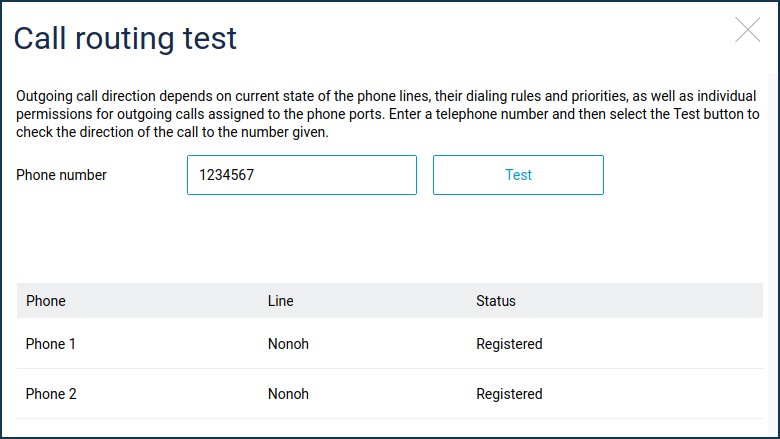
The 'Phone' column shows the names of the FXS ports, to the right of each in the 'Line' column is the name of the telephone line through which a call will be sent to that number from that port. If no suitable line is found for a call to a given number, 'No matching lines' is displayed instead of the line name. If the routing of outgoing calls is not what you intend, adjust the settings of the telephone lines and FXS ports. The logic of the dial rules and their syntax are described in the article 'Setting up a telephone line'.
Setting up a telephone line
On the 'Telephone line settings' page, specify the connection settings as provided by your IP telephony service provider:
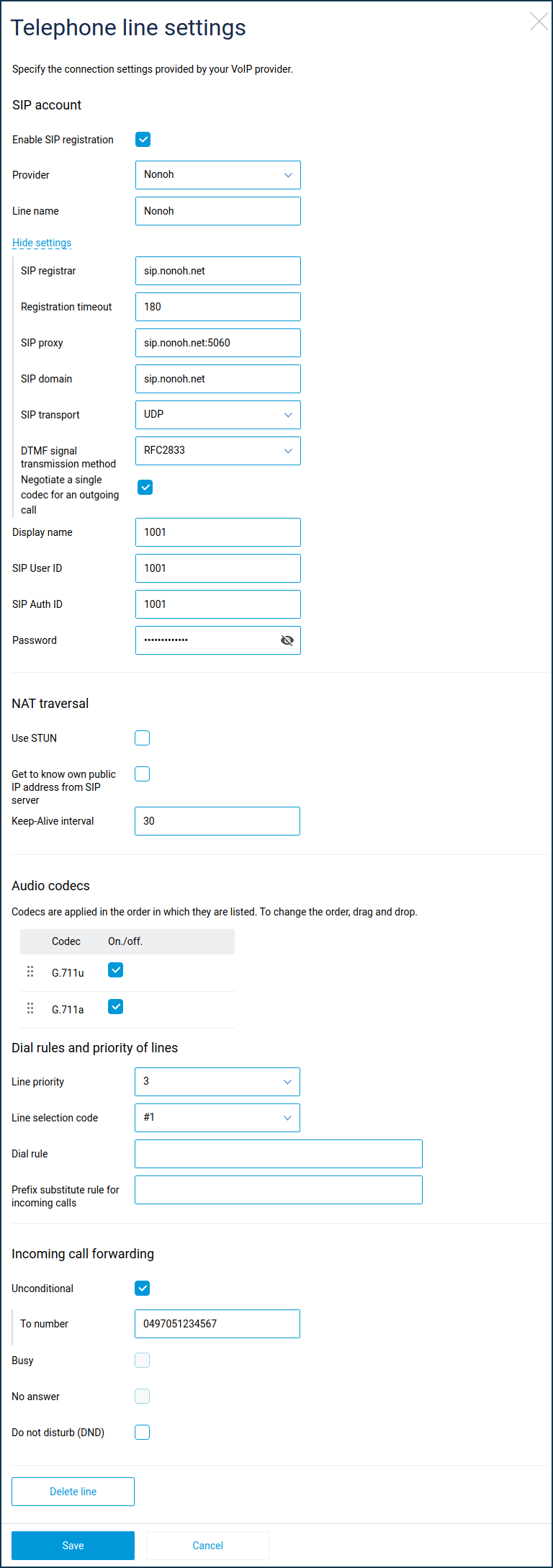
SIP account section
Enable SIP registration — SIP registration must be enabled to connect to most IP telephony operators. Disable SIP registration if you want to configure the line to connect to an operator without registration, with authentication by IP address. In addition, disabling registration allows you to set up direct calls between two Netcraze devices without using an IP telephony provider (hereinafter "p2p calls").
Provider — select an IP telephony operator from the list to automatically configure a line to connect to that provider. If your ISP is not on the list, select 'Other' and configure the phone line manually. You can contact Netcraze technical support to request to add a provider to the list.
Line name — the name of the line can be anything. It appears in the system call log and message log entries created for incoming and outgoing external calls.
By default, some of the settings configured automatically when an operator is selected are hidden. Click 'Show settings' if you wish to configure them manually.
SIP registrar — IP address or domain name of the SIP registration server. If the server uses a non-standard port (other than 5060), specify it to the right, separated by a colon. When SIP registration is disabled, this field is not displayed.
Registration timeout — the period of validity of SIP registration on the IP telephony operator's server, after the expiry of which registration should be resumed. The server can change this parameter during the registration process. Registration is required in order to receive incoming calls. When SIP registration is disabled, this field is not displayed.
SIP proxy — the proxy server of the IP telephony operator through which SIP signalling messages must be routed. If the server uses a non-standard port (other than 5060), specify it to the right with a colon. For p2p calls, you need to specify the IP address and port of the other Netcraze device here.
SIP domain — is the name of the SIP domain where the user is registered (right side of the SIP URI after the '@' symbol). When configuring p2p calls, the same domain (any domain) must be configured on both Netcraze devices.
SIP transport — the transport protocol (onwards: transport) used to transmit SIP signalling messages. Select the transport protocol that your IP telephony operator supports:
UDP/UDP6 – the most commonly used transport. Supported by most SIP IP telephony servers and subscriber devices;
TCP/TCP6 – guarantees delivery of messages, including long messages, which cannot be carried by
UDPtransport;TLS/TLS6 – enables the secure exchange of SIP signalling messages with the operator's server. It helps prevent the theft of credentials and other important information transmitted in SIP signalling messages.
UDP, TCP and TLS transports use the IPv4 network layer protocol for data transfer. When using IPv4 to communicate with an IP telephony operator's server, you should select these transports.
UDP6, TCP6 and TLS6 are UDP, TCP, and TLS transports that use the IPv6 network layer protocol for data transfer. You should select these specific transports to communicate with an IP telephony operator's server using IPv6.
Note
When communication with an IP telephony operator's server is only possible over one specific version of the IP protocol (either 4 or 6), the system automatically uses that version regardless of the selected transport. In other words, if communication is only possible over IPv4, the UDP transport will use IPv4 even if the line setting specifies UDP6.
SIP security mode — this setting is only available when the TLS transport protocol is selected. Select the security type when using TLS:
SIP-TLS — the SIP URI scheme is used. This only uses the TLS transport to send SIP signalling between your Netcraze device and your IP telephony provider's proxy server;
SIPS — the SIPS URI scheme is used. It is designed to ensure that secure transport protocols are used to send SIP signalling all the way between you and the remote subscriber you are talking to.
Voice transmission protocol:
RTP — to transmit voice data using the RTP protocol only;
RTP or SRTP — on outgoing calls, offer to use the SRTP protocol to secure voice data exchange. For incoming calls, use the protocol (RTP or SRTP) offered by the calling party;
SRTP — use only the secured SRTP protocol. Reject incoming calls if the calling party offers to use unsecured RTP.
DTMF signal transmission method — during an established telephone connection, it is sometimes necessary to additionally dial the caller's extension number, voicemail control codes, etc. When the keypad buttons are pressed, the corresponding DTMF signals (0, 1...9, # and *) are transmitted to the remote party over the VoIP connection using one of three methods:
RFC2833 — transmission by RTP protocol messages;
SIP Info — SIP INFO request transmission;
Inband — transmission in the media stream together with voice.
Select the DTMF transmission method that your IP telephony operator supports.
Display name — the name that is displayed on the called party's phone when an outgoing call is made.
SIP User ID — the SIP User ID (the left side of the SIP URI before the '@' symbol).
SIP Auth ID — the name used when authenticating to the IP telephony operator's servers. This field is not displayed when SIP registration is disabled.
Password — the password used when authenticating to the IP telephony operator's servers. This field is not displayed when SIP registration is disabled.
NAT traversal section
Use STUN — this option should be used when the Netcraze device is connected to the IP telephony operator's public SIP server via a NAT router and has a local IP address on the WAN interface. It allows you to receive the external IP address and NAT UDP ports associated with the local SIP and RTP ports of Netcraze Phone Station from the STUN server. The received data is placed in the Via, Contact, Connection Address and Media Port headers of SIP signalling messages. It should be noted that STUN technology does not work with symmetric type NAT.
Get to know own public IP address from SIP server — with this option, Netcraze Phone Station receives the IP address (or NAT IP address) from the SIP registration server and overwrites the relevant fields in the Via, Contact and SIP/SDP headers with it. This ensures two-way audibility and successful exchange of SIP signalling messages. Activate this option when a secondary channel such as a VPN tunnel is used to communicate with the server or when there is a symmetrical NAT between the Netcraze router and the public IP telephony server with which STUN technology does not work.
Keep-Alive interval — Netcraze periodically sends Keep-Alive messages to the SIP proxy signal port at a set interval to keep an open connection to the server via NAT.
This is necessary to ensure that incoming calls are received from the server.
Audio codecs section
When used with the Netcraze Linear adapter, Netcraze Phone Station supports the following codecs:
G.711u
G.711a
Codec priority corresponds to its position in the list, i.e. the codec in the top position has the highest priority. Codec priorities are taken into account for outgoing calls. The called party selects the codec with the highest priority that it supports. You can change the codec priority by dragging the line to the desired position. To drag and drop, use the special marker located at the beginning of each line.
The codecs can be turned on and off. Switched-off codecs are not used for voice communication.
Dial rules and priority of lines section
Line priority — the telephone line priority number. The higher the number, the higher the priority. Priorities are taken into account when selecting a line for an outgoing call. The telephone exchange selects the line with the highest priority among those that are allowed for this telephone and have appropriate dialling rules.
Line selection code — line selection code #0...#9 allows you to select the desired line for an outgoing call. To select a line, you need to dial its code, then the subscriber's number. When you select a line with the code, the dial rules are ignored, and you can call a number that does not comply with the dial rules of that line. Only lines that are allowed for the phone can be dialled with the code. To prohibit line selection using a code, select 'no' from the drop-down list of codes.
Dial rule — the dial rule describes the numbers for which outgoing calls are allowed through this line. In the absence of a dial rule, any numbers are allowed to be called.
When an outgoing call comes in, the Phone Station selects the line with the highest priority among those that have dial rules to which the dialled number corresponds. If the number does not match the dial rules, the line without dial rules with the highest priority is selected. A line without dial rules always has a lower priority than any line with dial rules. Only a line in which outgoing calls are allowed through this port can be selected for a call.
Dial rule syntax:
01234567890*#+ABCD— characters allowed by dialling rules;T— waiting for the next digit of the number;x— any digit from0to9;[146]— any of the digits within the square brackets (1,4or6);[1-6]— any one of the digits in the range specified in the square brackets (1,2,3,4,5or6);(8>+7)— replacement/substitution/deletion. To the left of the '>' character is a sequence of digits to be replaced by the sequence to the right of the '>'. If only the sequence on the left is specified, it will be deleted from the dialled number. If only the sequence to the right is specified, it will be added. The expression must be enclosed in parentheses.2.— the digit to the left of the dot is repeated any number of times.
The '|' character separates two or more rules in a string.
Examples of dial rules:
+749[589]xxxxxxxx— any number of seven digits prefixed with '+7495', '+7498' or '+7499'.8[49]xxxxxxxxxx— any number with11digits, the first digit of which is '8' and the second one is '4' or '9'.10xx— any four-digit number, the first digit of which is '10'.*xx#— a four-digit sequence, in which the first character is '*', followed by any two digits and the character '#'.[1-79]xxxxxx— any number with seven digits, where the first digit is any digit, except8;x.— any number consisting of digits from0to9.0T|00T|000— the numbers0,00or000. The symbol 'T' is used to wait for dialling to continue after dialling0and00. It should be used when you want to dial numbers in conversational mode (press the call button, then dial the number).(8>+7)x.— in any number, the first digit of8will be replaced by+7.(*2>84951234567)— dialling*2will send a call to84951234567. This is how you can set up speed dial.8[49]xxxxxxxxxx||10xx|*xx#— the three rules discussed above are written in one line separated by '|'. The Phone Station checks these rules one by one, from left to right.
Prefix substitute rule for incoming calls — allows you to replace or delete individual digits or groups of digits in a caller number that appears on the telephone display when a call comes in. The symbol '>' is used for replacement. To the left of the '>' must be a sequence of digits to be replaced by the sequence to the right of this symbol. The replacement expression must be enclosed in parentheses. There can be more than one replacement expression in a prefix replacement rule. Otherwise, the prefix substitution rule has the same syntax as the corresponding set rule discussed above.
An example of a prefix substitution rule:
(8>)49(5>9)x.— In the numbers, which begin with the digits8495, the digit8is deleted, the digit5is changed to9, and the rest of the number is left unchanged. The resulting number is shown on the telephone display.
Note
What is the prefix substitution rule used for?
In some cases, for incoming calls, the calling numbers are in a format that is not compatible with the dialling rules of the IP telephony operator. This makes it impossible to call the caller back to the number that was shown on display. For example: during an incoming call, +491761234567 is displayed on the phone display but to call back the given subscriber, you need to dial 01761234567.
In this case, the prefix replacement rule (+49>0)x. can replace +49 in the caller's number with 0. With this rule, the number 01761234567 appears on the phone display when there is an incoming call and is compatible with the operator's dial rules.
Incoming call forwarding — this function allows you to forward incoming calls to certain numbers under certain conditions.
Activate the option corresponding to the required forwarding condition; on the right, indicate the telephone number to which you want to forward incoming calls.
Call forwarding conditions:
Unconditional — the call forwarding is always performed. When unconditional forwarding is selected, other types of forwarding do not work. When a call is forwarded unconditionally, you do not receive a call on the phones. Information about forwarded calls is recorded in the call history and the system log;
Busy — calls are forwarded when the handsets for which you have allowed incoming calls from this line are busy in a call;
No answer — the call forwarding is performed if an incoming call is not answered within the time interval. This interval (in seconds) must be specified in the appropriate field to the right of the call forwarding number.
Note
Netcraze Phone Station allows you to receive a second call during a call. This means that the busy condition is met when each of the handsets allowed to receive an incoming call is already involved in two calls. This is possible when one of the calls is put on hold.
When a call is forwarded, Netcraze Phone Station sends a special SIP message to the calling party with the SIP URI and the forwarding number. All further actions on subscriber connection to this number are performed by the subscriber's equipment and/or the IP telephony operator's server.
Do not disturb (DND) — enable this option if you do not want to be disturbed by incoming calls. When DND is activated, calls are not received on the phones, callers are notified that you are busy, and information about missed calls is recorded in the call history and system log.
Delete line — press this button if you wish to delete the line. Once you have confirmed, the line will be permanently deleted, and you will no longer be able to use the IP telephony service of this operator.
Call history
Information on incoming and outgoing external and internal calls is recorded in the call history of Netcraze Phone Station.
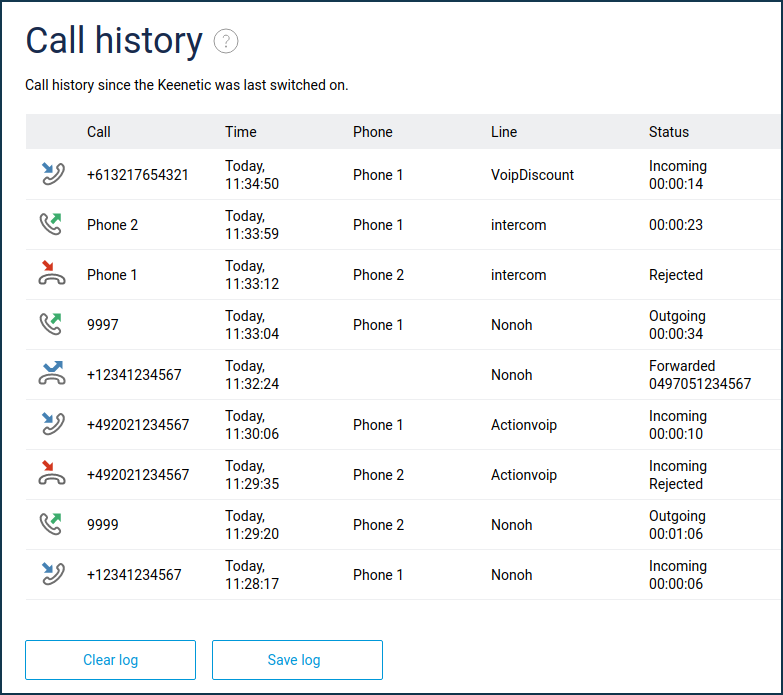
Each history log entry corresponds to an incoming or outgoing call and contains the following information:
Call — the number of the caller or caller to be called. In the case of an internal call, the name of the called party.
Time — time and date of the call.
Phone — name of the FXS port to or from which the call was made.
Line — the name of the phone line through which the call was made.
Status — this field displays:
Duration of the call, if the telephone connection was made;
Not answered — the caller did not answer the call, or the call was rejected by the proxy or the subscriber's equipment. In the latter case, the code and text of the message received from the called party is displayed, which explains the reason for the failed connection;
Missed — the incoming call was not answered;
Rejected — user of the phone specified in the "Phone" field declined the incoming call;
Forwarded, XXXX — incoming call was forwarded to number
XXXXin accordance with call forwarding settings.
The direction of the call (incoming/outgoing) is indicated by arrows:
blue arrow to the left — incoming call;
green arrow to the right — outgoing call.
Clear log — press this button if you want to delete all entries from the call history.
Save log — press this button to download the call history to your computer in CSV format.