Updating NDMS
We regularly release updates to the operating system of Netcraze devices to make them faster, more functional and safer. We recommend using the latest version of NDMS available for your device.
Important
To update to the latest release of NDMS online, it is required that the device has established an Internet connection first.
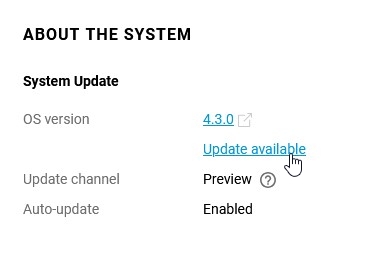
On the System dashboard page of your device's Web interface, in the About the system infobox, look for the OS version. The operating system automatically checks for new releases. When the server has a newer version than the one already running on the device, you will see the Update available status under the OS version line.
Note
Some models of Netcraze devices have an FN LED on the front of the case, which, with default settings, blinks when there is an update.
Click the Update available link. The General System Settings menu will open.

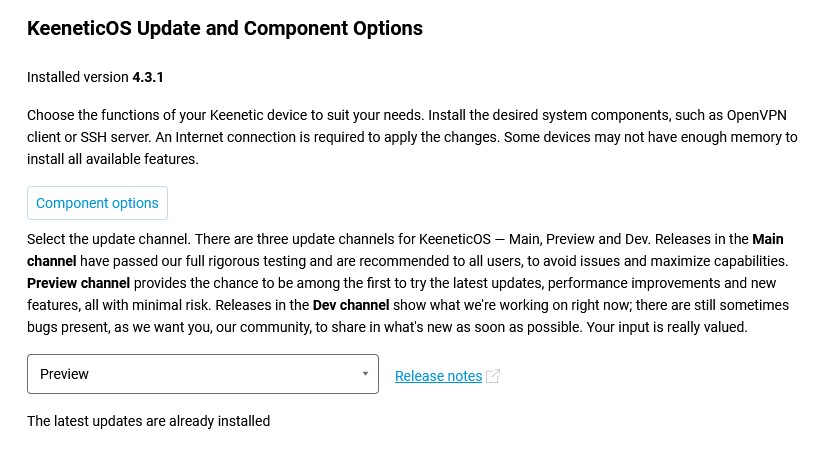
In the NDMS Update and Component Options section, click on the Update NDMS button to start the operating system update process.
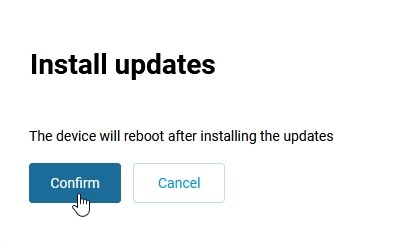
An information dialogue will appear with the message The device will reboot after installing the updates. Please click the Confirm button.
Important
During the upgrade process, do not turn off the device or disconnect it from the Internet.

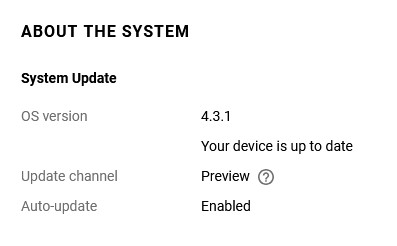
Upon completing the OS update process, the Netcraze will restart automatically and then be ready for use again. The update availability status will change to Your device is up to date.
Note
Under NDMS Release Notes on our website, news on NDMS operating system releases is posted along with a list of major changes regarding Official releases, Preview (beta) and Dev (debug) versions.
Functionality of your router is defined by a set of installed modules (components). You can always change this set by selecting the components you want. Please refer to the NDMS components installation/removal article for more information.
Important
Changing the component set will update NDMS to the latest version.
It is not guaranteed that all components and specific combinations of components available for a specific model can be installed simultaneously.
If, for some reason, you are unable to update NDMS operating system on your router, please refer to the FAQ: component installation and updating NDMS article.
The system can be updated via the Netcraze mobile app. For more information, see the article Updating NDMS from the mobile app.
You can update the operating system on your Netcraze router offline (without an Internet connection). See the article Updating NDMS by a system file (update via a firmware file).