Internet connection via PPTP/L2TP
PPTP and L2TP are often used in ISP networks. The main advantage of these protocols is the security of data transmission to the Internet. Below, we will consider an example of setting up a connection via the PPTP protocol as the most common one. The L2TP connection is configured in the same way.
On the Ethernet Cable Connections to Internet page in the ISP Authentication (PPPoE / PPTP / L2TP) section, in the Type (protocol) field, specify the value PPTP or L2TP, depending on what type of connection you want to configure. In the Server address field, enter the IP address or domain name of the PPTP or L2TP server. In the Username and Password fields, enter the login and password provided by your ISP for connecting to the Internet, respectively.
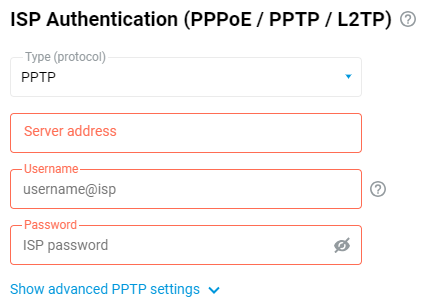
Click Show advanced PPTP settings to display the advanced settings fields.
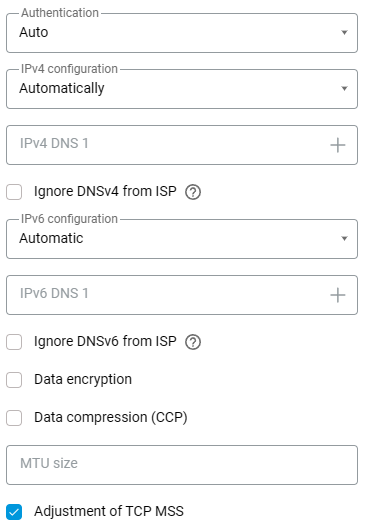
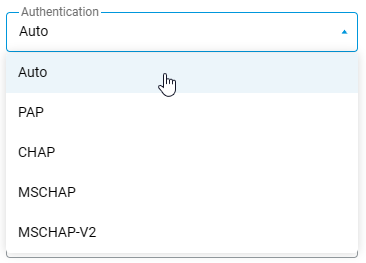
By default, the Authentication field is set to Auto. If your ISP requires a specific authentication method, select PAP, CHAP, MSCHAP, or MSCHAP-V2 from the drop-down list.
If the PPTP connection uses data encryption (MPPE), enable the corresponding option.
Leave the IPv4 configuration field set to Automatically if the IP address for Internet access is assigned automatically by your ISP.
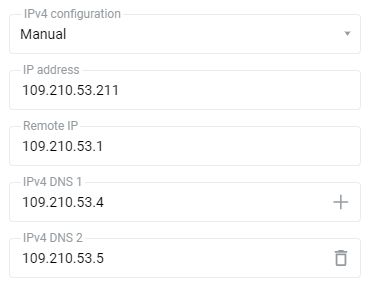
If your ISP has provided you with a fixed (static) IP address, choose Manual in the IPv4 configuration field and specify the IP address and gateway address in the fields IP address and Remote IP that appear. For example:
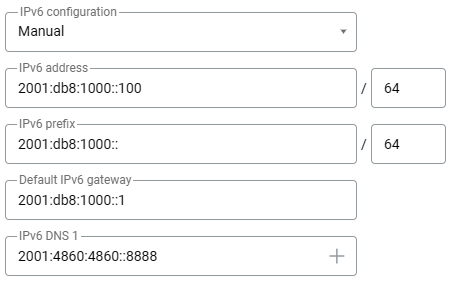
Leave the IPv6 configuration field set to Automatic if IPv6 parameters are assigned automatically by your ISP. If your ISP has provided you with static IPv6 settings, specify Manual in the IPv6 configuration field and enter the IPv6 address, IPv6 prefix, and Default IPv6 gateway in the fields that appear. For example:
To disable IPv6 processing for this connection, select Disabled.