Connecting to an IKEv2 VPN server from Android
Important
If you plan to set up your Netcraze as a VPN server, you should start by checking that it has a public IP address and, if using the CrazeDNS domain name, that it is configured in the Direct Access mode, which also requires a public IP address. If any of these conditions are not met, you will not be able to connect to such a server from the Internet. An exception to this rule is described below in the Note section.
Configure the VPN server according to the IKEv2/IPsec VPN server server instructions. For example:
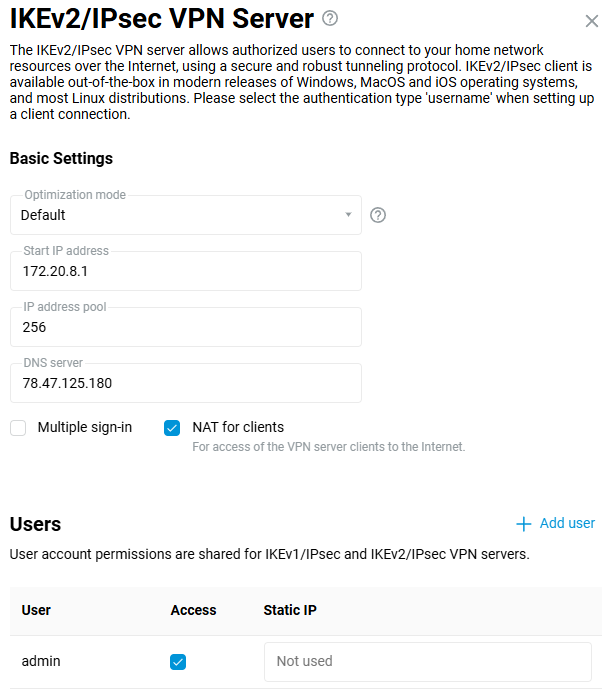
Then set up an IKEv2 connection on your Android mobile device.
In Android, you can use the free popular VPN client strongSwan.
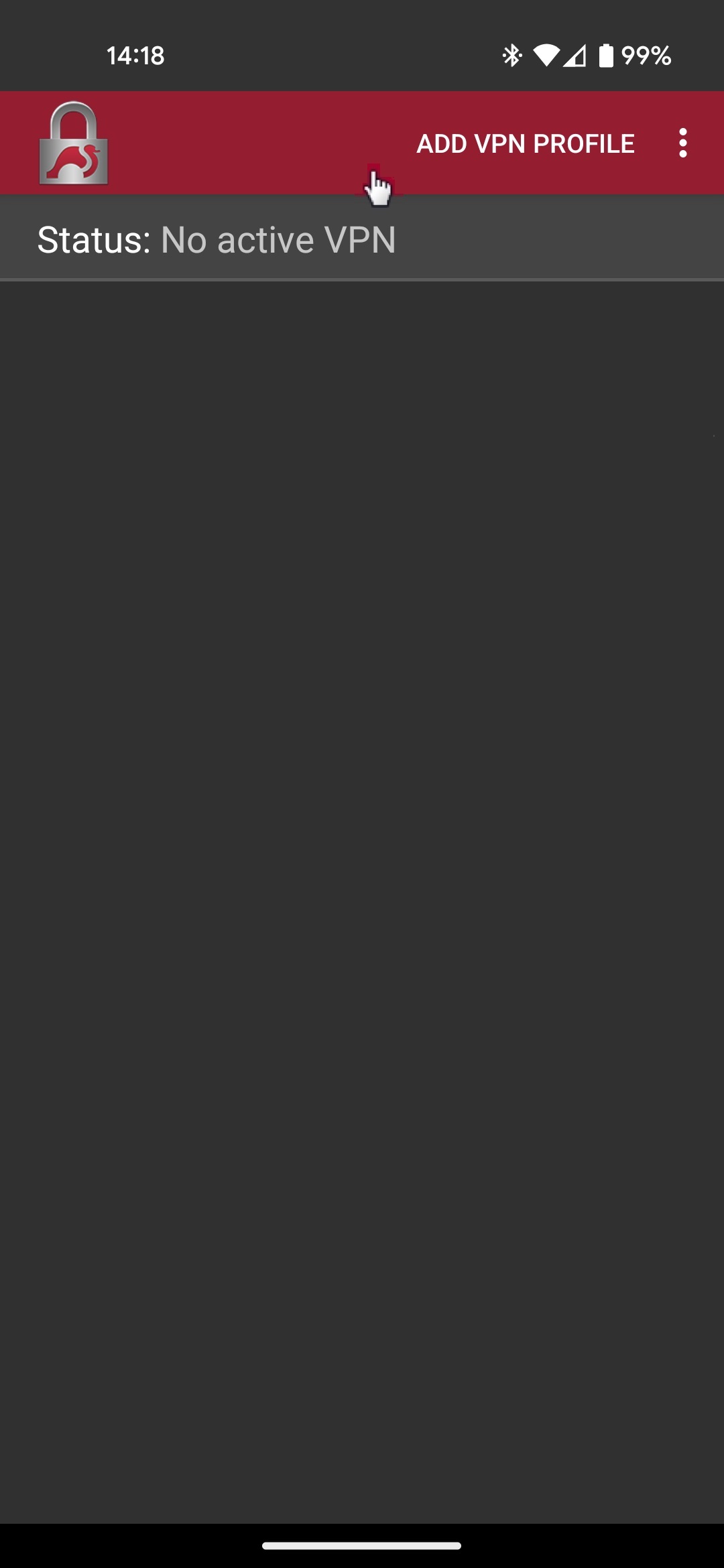
Start the VPN client. Click Add VPN Profile:
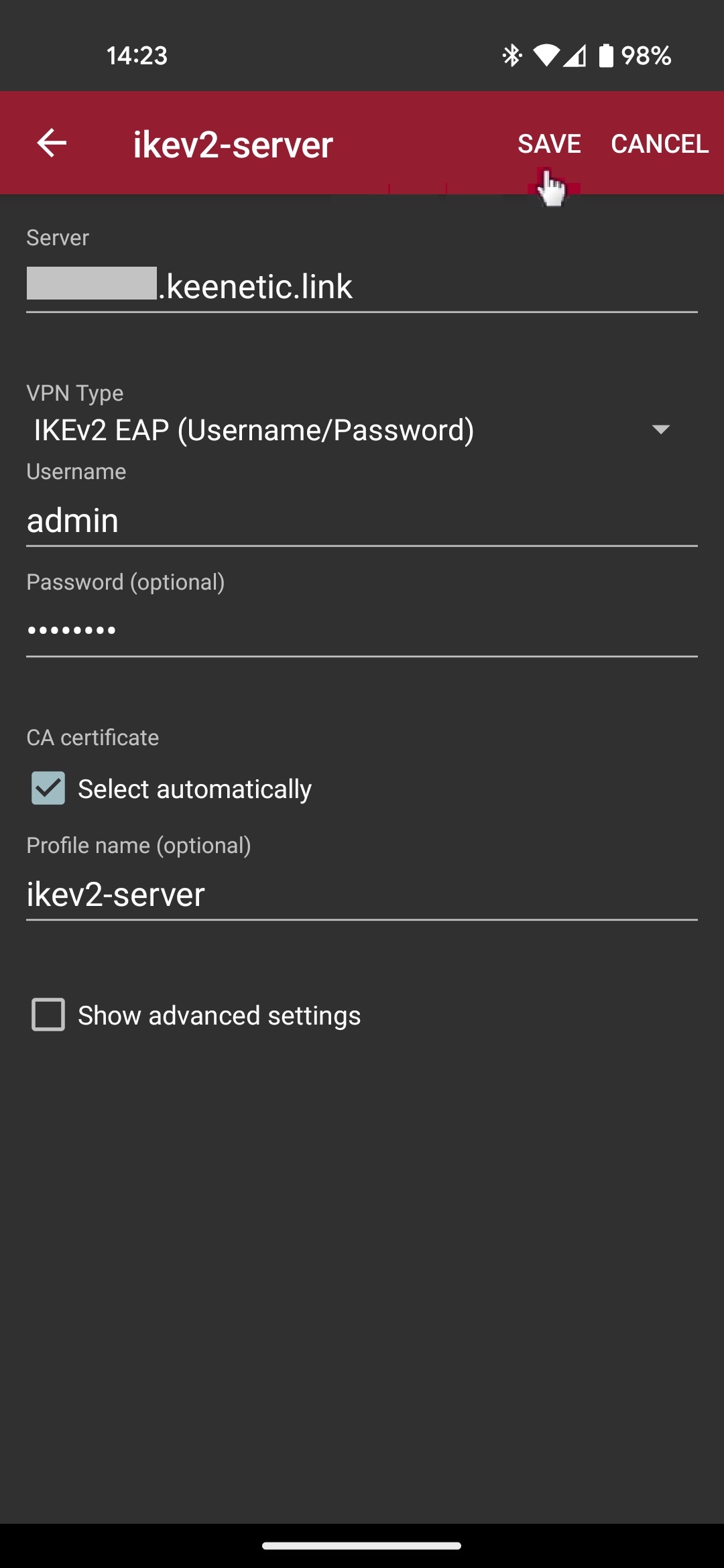
Then specify the server address (this is the public IP address of the router or its CrazeDNS domain name), the connection type IKEv2 EAP (Username/Password), the login and password of the router user account that has permission for VPN connection. Save the connection settings.
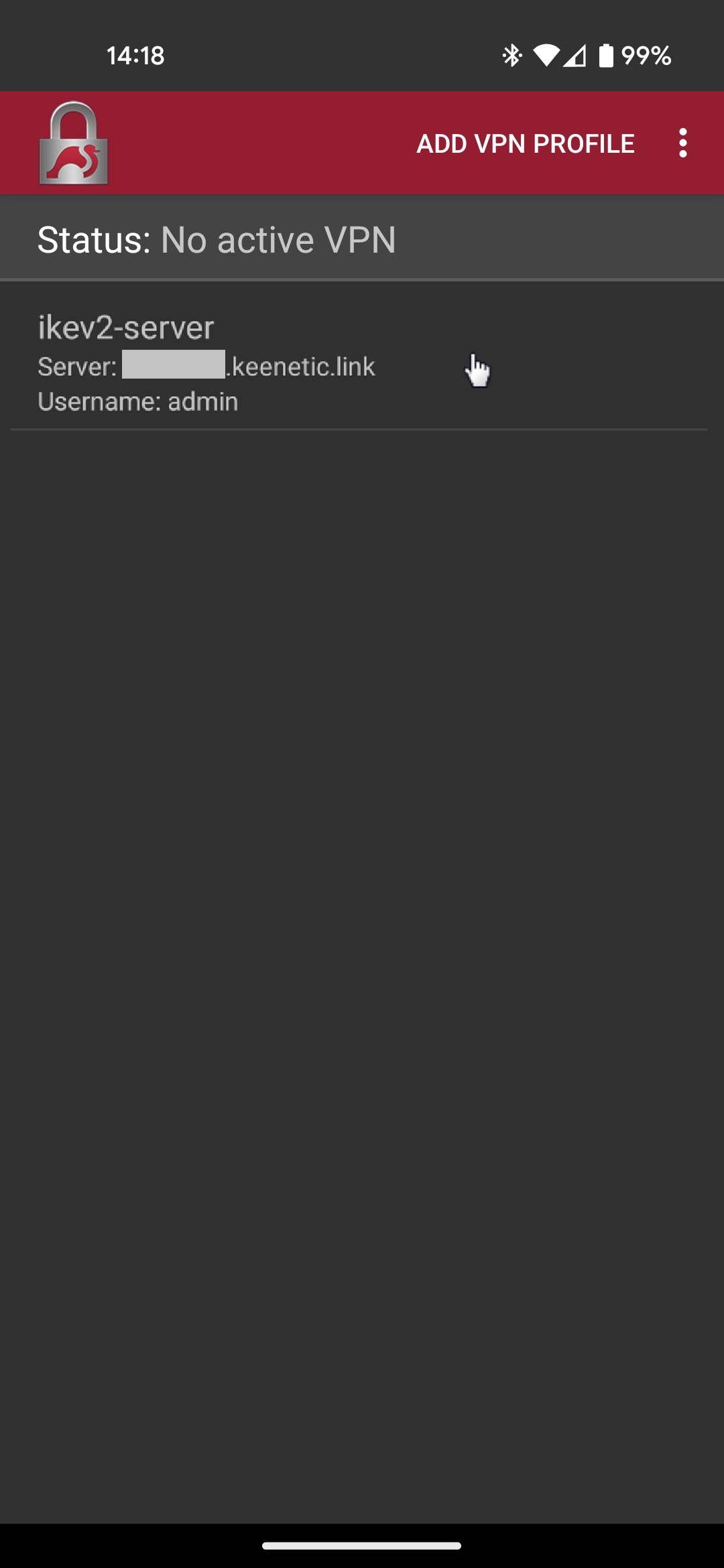
Click on the created connection to start the VPN.
This will attempt a VPN connection to the IKEv2 server on Netcraze. You will see a Connected status if the connection is successful.
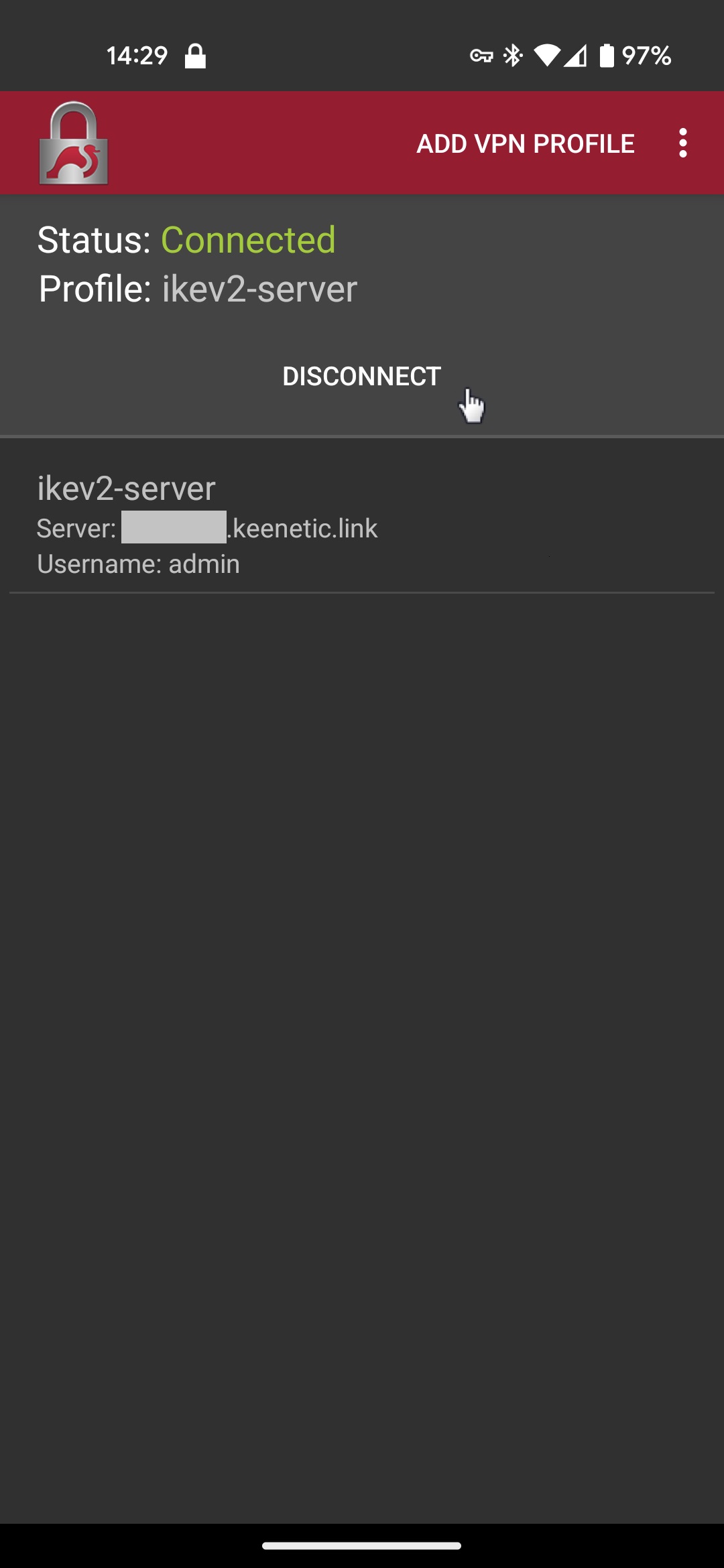
You can disconnect the VPN connection on the same screen by tapping the Disconnect button.
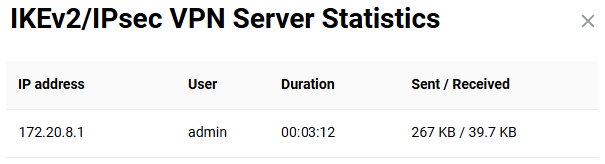
When you set up a VPN connection, you can see the current connection statistics on the Netcraze router.
Note
If your Netcraze device is located behind another router, additional steps are required to access the VPN server.
Connecting from the Internet to a VPN server that has a private IP address is only possible if port forwarding to the private IP address of the Netcraze device is configured on the upstream router with a public IP address. For IKEv2, forwarding ports UDP 500 and UDP 4500 is required. Alternatively, you can forward all ports and protocols using the DMZ feature if your upstream router supports it.
Additionally, you need to adjust the connection settings in the strongSwan app:
In the Server field, enter the public IP address of the external router used to access the Internet.
Check the Show advanced settings box, and in the Server identity field, enter the domain name of your Netcraze router on which the IKEv2 server is running (for example, the CrazeDNS).
With these settings, the client connects to the external router using its public IP address, but during the certificate and tunnel identity verification phase, it expects the domain name of the destination VPN server, allowing the connection to be established successfully.