Telegram notifications
Netcraze RMM lets you subscribe to real-time notifications about critical events at your sites.
Notifications are delivered via Telegram and Max, so you need a registered account with at least one of them to use this feature.
Notifications can be received simultaneously in both messaging apps and across several accounts at once — for example, so that all on-duty engineers can see the events.
Subscribing to notification
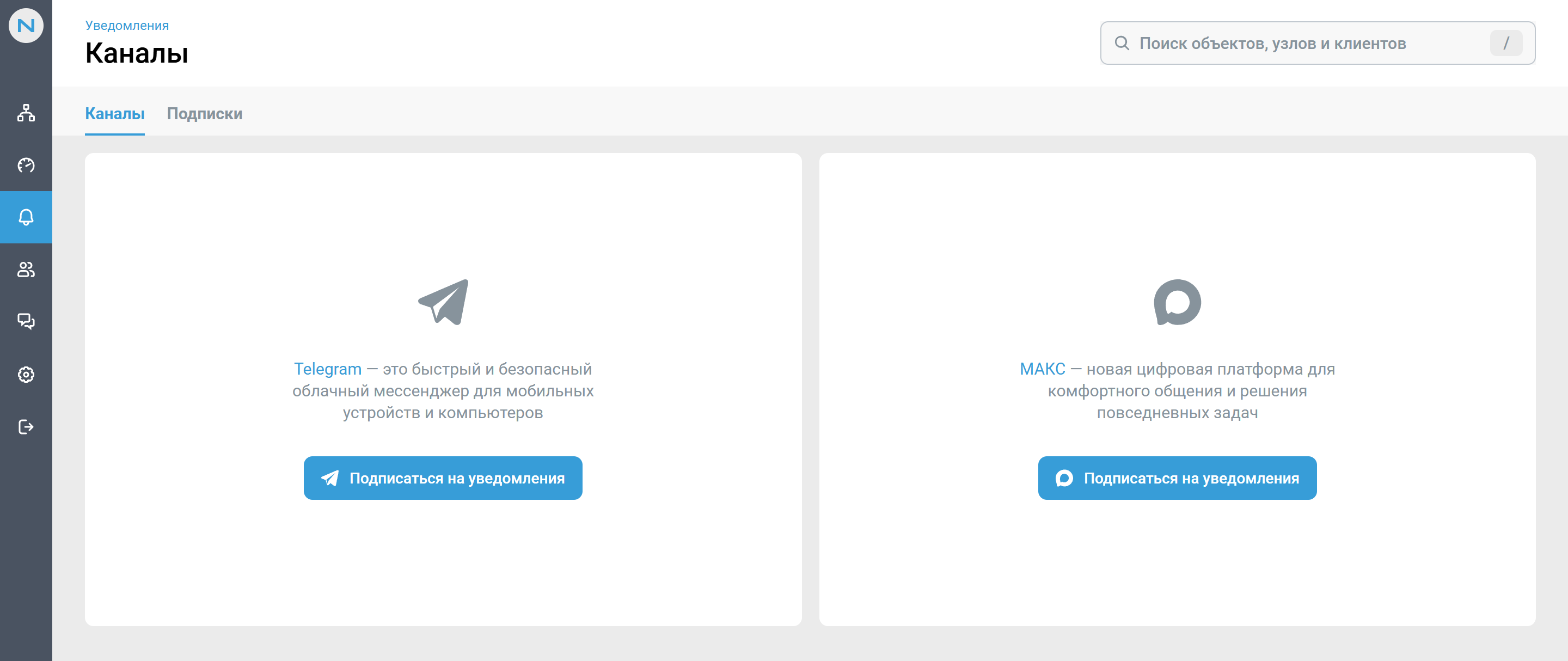
Go to the Inform (Оповещение) section in the side menu and open the Notifications (Уведомления).
Click Subscribe (Подписаться на уведомления) to notifications on the Telegram or Max card.
If you use the web version of the messenger, choose Automatically (Автоматически).
If you use the mobile version of the messenger, choose Manually (Вручную).
Each connected account shows its current status:
Active (Активен) — notifications are being delivered.
Blocked (Заблокирован) — the bot has been blocked on the messenger side, and notifications are not delivered. To resume delivery, unblock the bot and start a chat with it again.
To disconnect an account, click the bin icon in its row. Once removed, the account stops receiving notifications, but the subscriptions themselves are preserved.
Configuring subscriptions
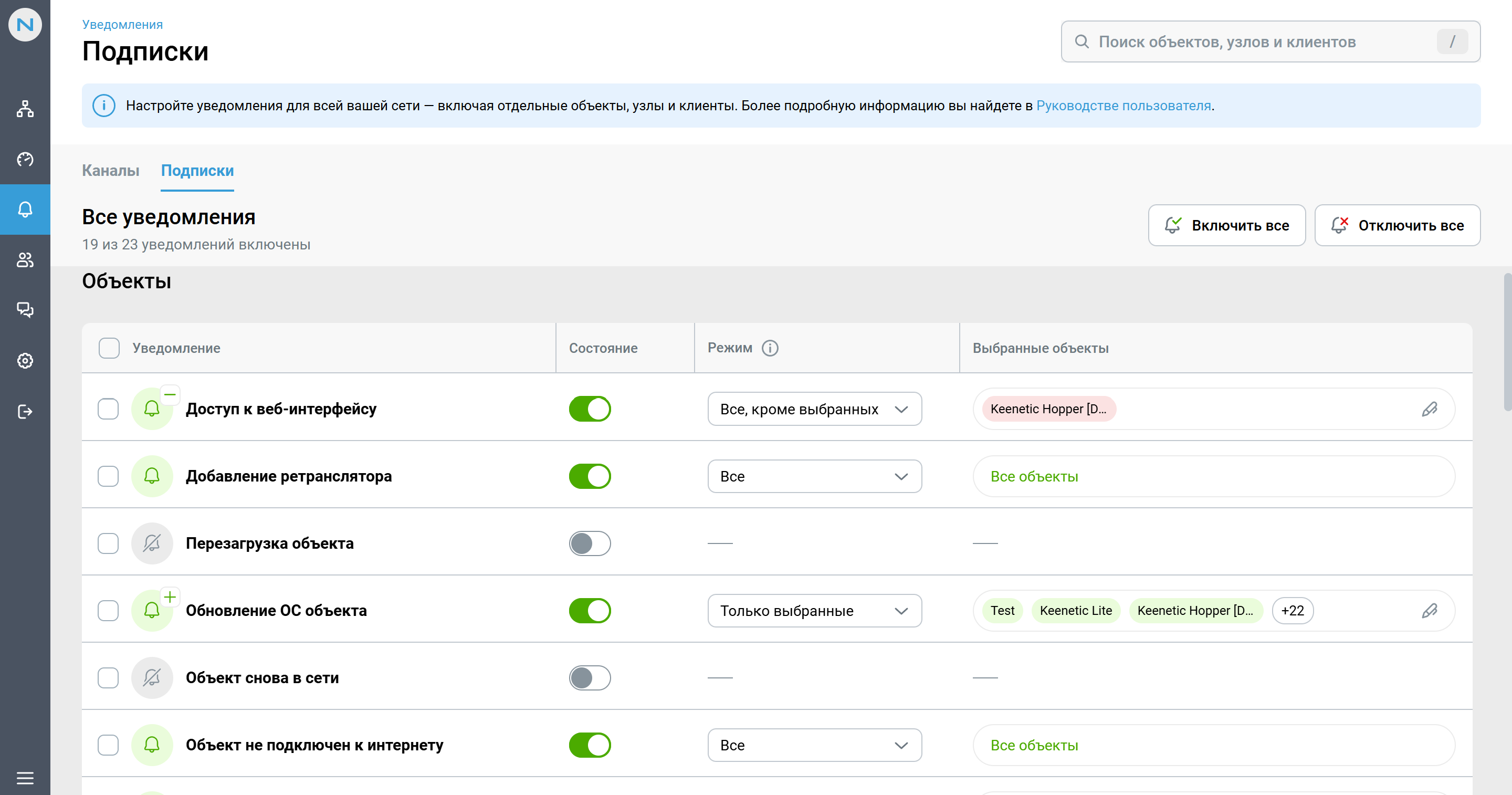
To configure notifications, open the Subscriptions (Подписки) tab and enable the events that matter to you. The top of the page shows how many notifications are enabled out of the total.
Notifications are grouped by entity type: Sites (Объекты), Nodes (Узлы), Clients (Клиенты) and Teams (Команды). The following settings are available for each notification:
State (Состояние) — a toggle that enables or disables the notification. When a notification is disabled, the other settings in the row are unavailable.
Mode (Режим) — the scope of the notification:
All (Все) — the notification is sent for all sites, nodes or clients, including those added later;
Only selected (Только выбранные) — the notification is sent only for the items you have specified manually (a
+badge appears on the bell icon);All except selected (Все, кроме выбранных) — the notification is sent for all items except the ones specified (a
−badge appears on the bell icon). This mode is handy for muting noisy sites without turning the notification off entirely.
Selected sites / nodes / clients (Выбранные объекты / узлы / клиенты) — the list of items for the chosen mode. Click the pencil icon to edit the list. Included items are marked green, excluded ones red. If there are more than three items, the rest are hidden behind a counter. Click the area with the items to view or edit the list.
The checkboxes to the left of the notification names let you select several rows and apply an action to all of them at once.
Notifications in the Teams (Команды) group have no mode or item list — they are simply switched on or off.
Available notifications
Sites (Объекты):
Access to web interface — logins and login attempts to the controller web interface
Extender addition — an extender is added to the site
Site reboot — the site has been rebooted successfully or with an error
Site OS update — the site OS has been updated successfully or with an error
Site going back online — the site status changes to
OnlineSite lost connection to Internet — the site status changes to
OfflineorWarningInternet connection switch — the site's main connection switches to the backup connection or vice versa
Primary connection status change — the status of the site's main connection changes to
Online/OfflineBackup connection status change — the status of the site's backup connection changes to
Online/Offline
Nodes (Узлы):
Node reboot — the node has been rebooted successfully or with an error
Node OS update — the node OS has been updated successfully or with an error
Node going back online — the node status changes to
OnlineNode lost connection to Internet — the node status changes to
OfflineorWarningSMS received — an SMS has been received on the controller
OS update available — a new OS version is available for the node
Clients (Клиенты):
Registered client connection — a registered client connects to the site
Registered client disconnection — a registered client disconnects from the site
Unregistered client connection — an unregistered client connects to the site
Unregistered client disconnection — an unregistered client disconnects from the site
Client registration change — a client becomes registered or unregistered
Client Internet access change — a client is blocked or unblocked
Client renaming — a client's name is changed
Teams (Команды):
Team member added — a team member accepts an invitation to the team
Changes are saved automatically and applied to all connected Telegram and Max accounts.
Enabling and disabling all notifications
The Turn on all (Включить все) and Turn off all (Отключить все) buttons in the top right corner of the Subscriptions (Подписки) tab change the status of every notification at once — across the Sites (Объекты), Nodes (Узлы), Clients (Клиенты) and Teams (Команды) groups.
Important
Those actions reset all previously configured settings. Modes (Selected only, All except selected) and the lists of selected sites, nodes and clients are not preserved — after the action, all notifications are switched to the All mode. Previous settings cannot be restored automatically and will have to be configured again.
Configuring notifications on a details page
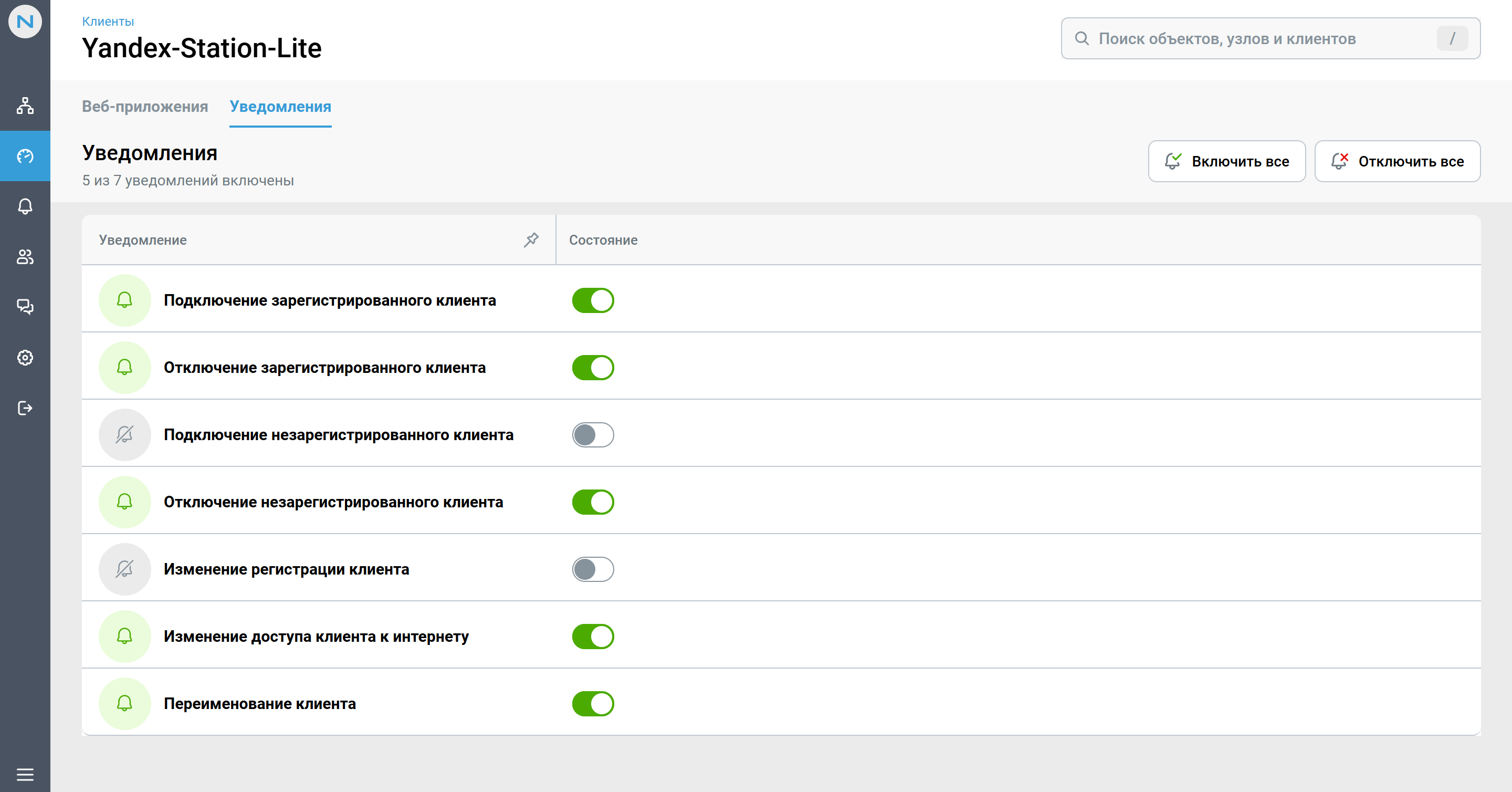
In addition to the general settings on the Subscriptions (Подписки) tab, notifications can be configured individually — for a specific site, node or client.
Open the details page of the item you need (via the Sites, Nodes or Clients section, or through global search) and go to its notification settings. It shows the list of events applicable to that particular item, and you can enable or disable each of them.
Both places are linked: changes made on a details page are reflected on the Subscriptions (Подписки) tab — the item is automatically added to the included or excluded list, and the notification mode changes accordingly.
This approach is convenient when you need to quickly mute notifications for a single noisy device or, conversely, to set up closer monitoring for a business-critical site without opening the full subscriptions table.