Application Filter
Starting with NDMS 5.0, the Application Filter has been added to the Internet Safety menu of the web interface. The filter lets you easily block certain applications or traffic categories (e.g., social networks, games, or streaming) for individual client devices and segments on your home network, such as your children's Wi-Fi.
To use this function, you must first install the Traffic classification engine system component.

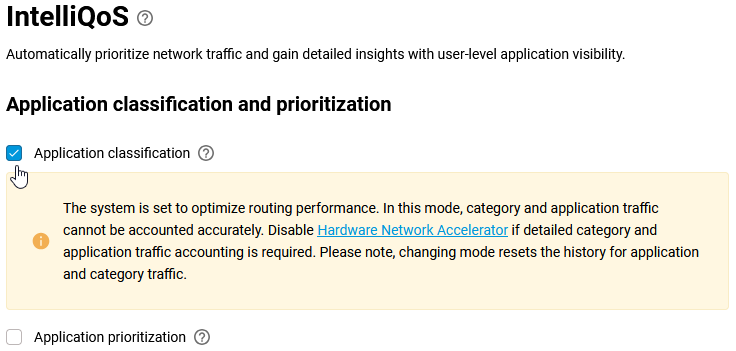
Then turn on the Application classification option on the IntelliQoS page.
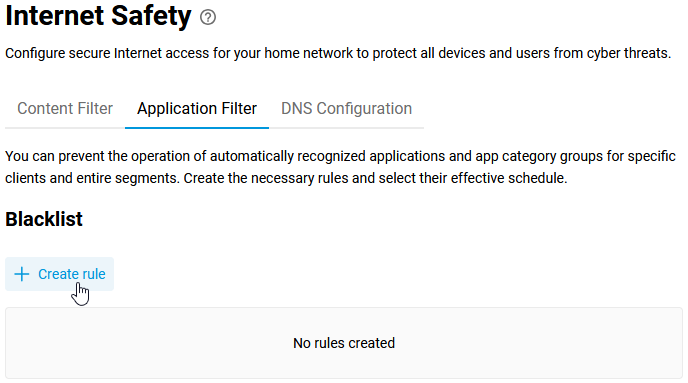
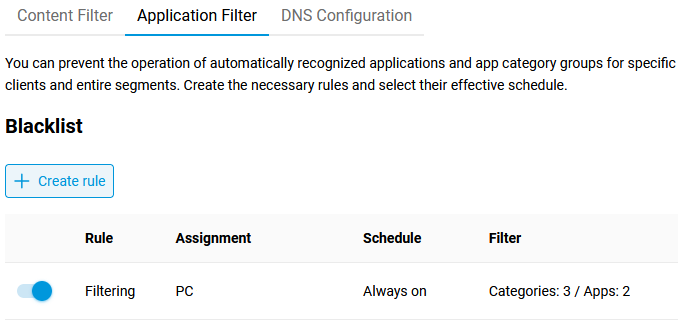
After that, the Application filter tab will appear on the Internet Safety page, with controls for blocking traffic from specific applications and app categories for individual clients and entire network segments.
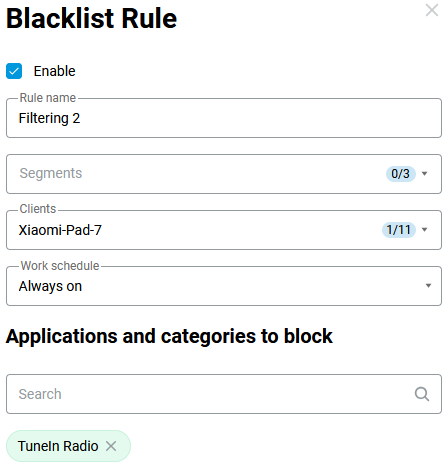
In the Blacklist section, click the + Create rule button.
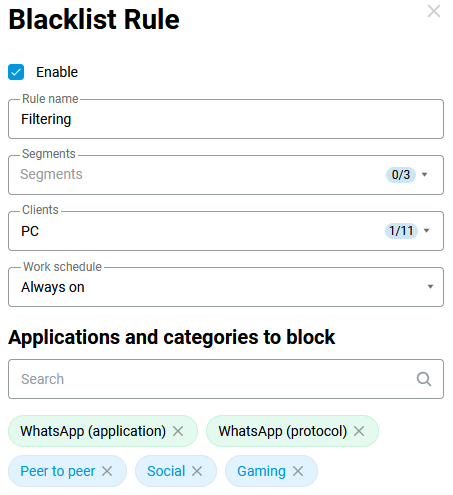
In the Blacklist Rule window that appears, tick the Enable box and enter a Rule name. In the Segments field, you can select the relevant network segment (in this case, the rule will apply to all clients in that segment). If, however, the blocking rule needs to be applied only to specific clients, select the required clients from the list in the Clients field. If necessary, assign a Work schedule to this rule.
In the Applications and categories to block section, enter the name of the application or category in the Search field and tick the required ones.
Tip
Using the Traffic Classification Engine, Internet traffic passing through the device can be classified into more than 2,200 applications (e.g. Slack, Google Meet, PUBG, GeForce Now, YouTube, Telegram, etc.) and 470 application-layer protocols (e.g. FTP, MPEG, RDP, SIP, RTP, GRE, ISAKMP, PlayStation Network, Source Engine, etc.).
List of applications and protocols supported by NDMS in the Main update channel
List of applications and protocols supported by NDMS in the Dev update channel
On the Application Traffic Analyser page, you can monitor the traffic of Internet applications used by clients in real time. Please note that this screen displays data from the last three minutes.
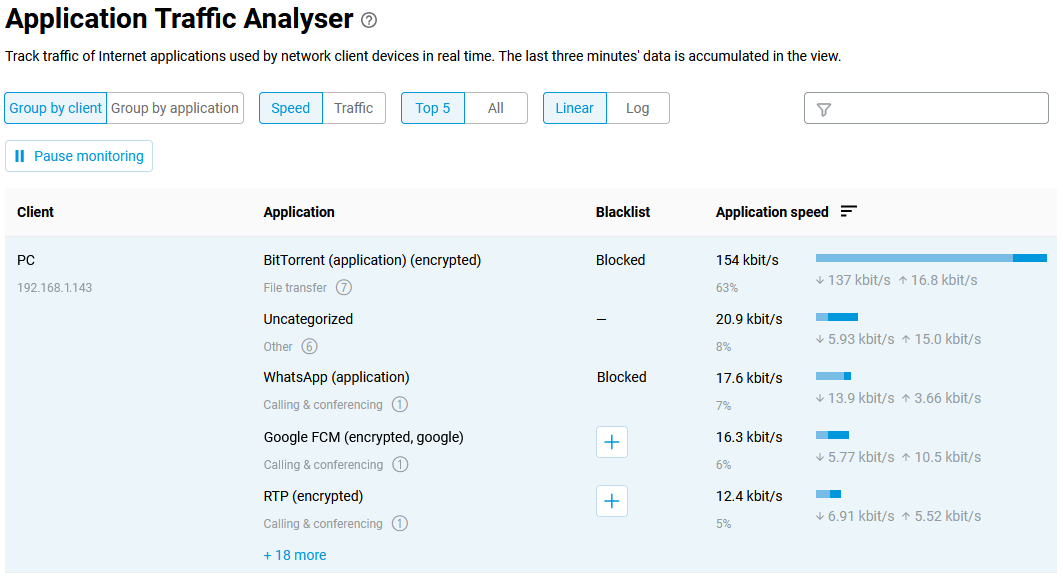
In our example, you can see that for the network client for which we created the rule, there is a block for the specified applications and categories.
You can also easily create a blocking rule directly from the Application Traffic Analyser page. To do this, click the + button in the Blacklist column for the relevant application.
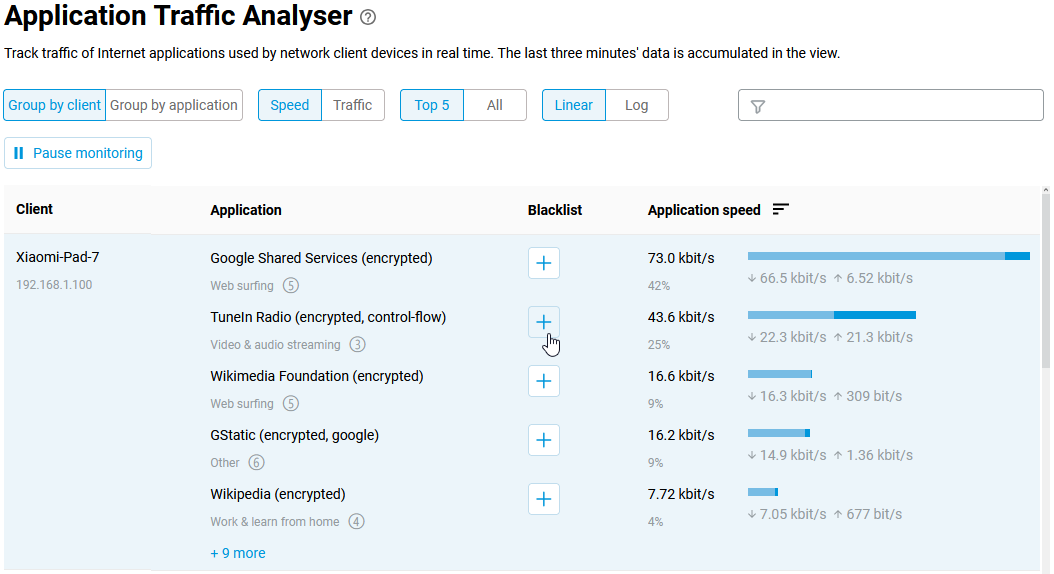
The Blacklist Rule window will open; tick the box next to Enable and enter a Rule name. The Clients field will already contain the relevant client, and the Applications and categories to block section will have the relevant application selected. If necessary, you can set a Work schedule for this rule.